
One platform All of SEO
Rankings, on-page, backlinks, and reports — all in one easy-to-use toolkit.
Available for:
Windows
Apple
Linux
OVER 2 MILLION USERS GREW THEIR BUSINESS WITH SEO POWERSUITE

One-stop SEO software
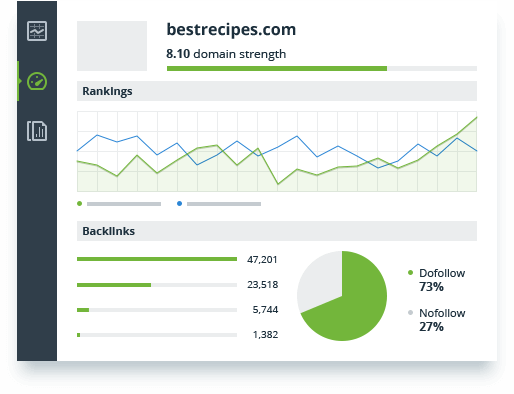
Looking for SEO solutions to help your site rank on Google? SEO PowerSuite holds enough tools for an SEO campaign of any caliber. It's got everything crucial for the SEO industry: from an SEO analysis tool to keyword research tools, to backlinks checkers, to content editors, to PPC ads optimization, and much more. Frankly, there is no SEO tool available elsewhere that's not already a part of SEO PowerSuite. With its intuitive UI and a wealth of pro-level features, it's a perfect SEO tool for newbies and SEO experts alike.
Our customers love what we do
SEO PowerSuite is regularly ranked as a G2 Leader for SEO Software





Competitive pricing
SEO PowerSuite covers all search engines and offers unlimited sites, keywords, and backlinks to track, and the best part is that many of those features are available for free. The catch? There isn't any. Because it's a desktop SEO tool, we don't have to pay for hundreds of servers to process your data. That's why SEO PowerSuite is at least 3X cheaper than other SEO software tools — and infinitely more flexible and feature-rich. The cross-platform software meets the needs of anyone in the industry, be it an individual SEO professional or a large SEO agency.
Fully automated SEO software
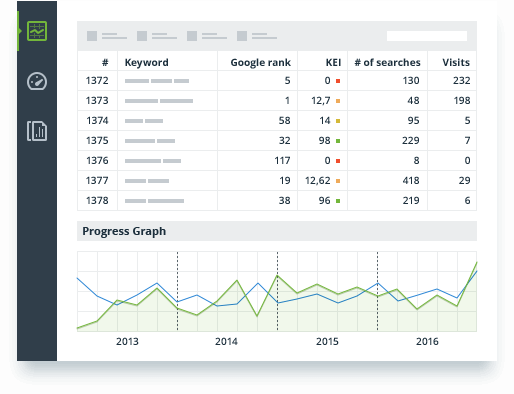
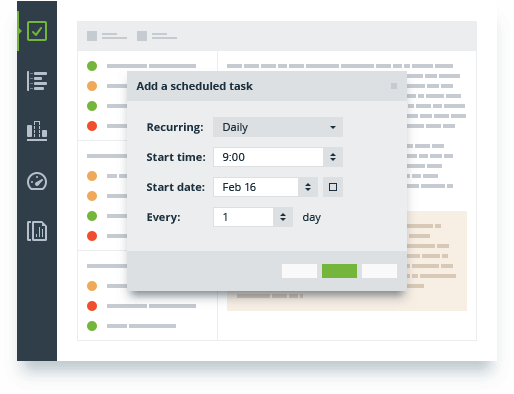
A 2-minute setup is all it takes to automate your SEO jobs, from rank tracking, site audits, and backlink checks to reporting. SEO PowerSuite lets you schedule tasks at any time and frequency — have all the research done and SEO data ready by the time you walk into the office. Millions of SEO issues are tackled daily with our customizable automation software.
Custom SEO solutions
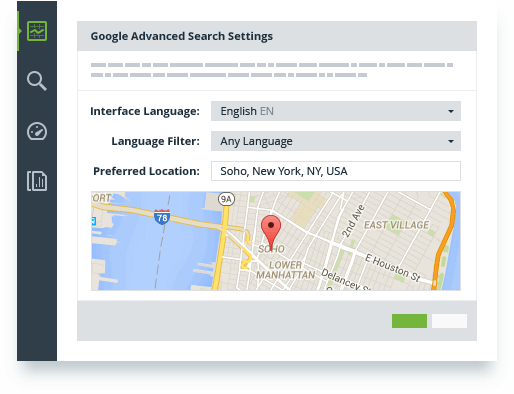
If you have experience with search optimization tools, then you probably know they tend to be very controlling over the ways you can manipulate their data. Not us. We give you every single option there is. You can choose search engines and locations, sort and filter the data to get revealing SEO insights, customize the way SEO analytics is presented, and even export it to be used elsewhere across businesses and SEO campaigns.
Branded SEO reports
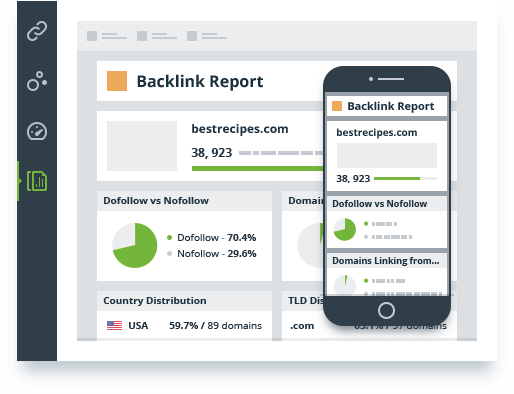
SEO PowerSuite's reports are white-label, customizable, and responsive, so they look their best on any device. Sharing is super easy too: a click of a button will upload your report to the cloud and give you a shareable link. The automatic report mailer will deliver reports to clients on your schedule, as a direct link or attachment, in a plain text or custom HTML email. Set up the search engine optimization software to assist in your daily routine — and watch your client relationships improve dramatically.
What's inside?
Comprehensive (SEO) search engine optimization involves keyword research and rank tracking, on-site optimization, backlink analysis, and link building. The four tools inside SEO PowerSuite will make sure every step of your SEO campaign is taken care of.
Get the most accurate SERP analytics to back your SEO strategies. See the score how well your pages are optimized. Grow your domain authority with quality backlinks. Research competitors to hack their optimization techniques. Do your website optimization, and drive more convertible traffic from Google with powerful SEO software tools.

Rank Tracker
Keyword research
& rank monitoring
& rank monitoring

WebSite Auditor
SEO spider
& on-page optimization
& on-page optimization

SEO SpyGlass
Backlink research
& auditing
& auditing

LinkAssistant
Link building
& management
& management
Why SEO PowerSuite Tools?
We couldn't put it better than SEO professionals who use our software.

I consider SEO PowerSuite to be central to my online business. I have been using the tools for a
number of years and they have paid for themselves multiples times over. It
really is the best 'all in one' suite of SEO tools that I use on a daily basis.

Matthew Woodward
Internet Marketer, Blogger
matthewwoodward.co.uk
Internet Marketer, Blogger
matthewwoodward.co.uk
Having helped countless companies unravel website issues through SEO auditing, it helps to know
you have the best tools behind you, and that is exactly what I strive to find. SEO PowerSuite
is certainly one tool that I can recommend to anyone who is serious about their
SEO.

Andy Drinkwater
SEO consultant
www.iqseo.org
SEO consultant
www.iqseo.org
Over the years, we've tried various SEO tools. None come close to SEO PowerSuite. These tools
provide functionality we can't find anywhere else, at a price that is far less
than other comparable solutions.

Chuck Siegel
CEO
Rule Your Kingdom
CEO
Rule Your Kingdom
SEO PowerSuite has been a game changer for us. At the click of a button we can get a clear
picture of our clients' presence online, from a ranking to a linking standpoint. All this
data is easy to manage and digest, making for a seamless user experience.

Robyn Winner
Sr. Campaign Manager
Webmarketing123
Sr. Campaign Manager
Webmarketing123
Try SEO PowerSuite tools for free
No strings attached. Grab your free download and watch your search rankings grow.






FAQ
What is SEO PowerSuite software?
SEO Powersuite is a toolkit made up of 4 tools that cover every aspect of SEO — keywords,
rankings, backlinks, on-page and content data, mobile SEO, local SEO, social media, analytics, and
reports.
What SEO tools are included in SEO PowerSuite?
4 tools that make up SEO Powersuite are Rank Tracker for rank tracking and keyword
research, WebSite Auditor for on-page SEO and technical SEO audit, SEO
SpyGlass
for backlink research, and LinkAssistant for link building
and outreach. Besides, there is a fresh online backlink checker as well as
backlink API access for enterprise users.
Can I try your SEO software for free?
Yes, you can! The tools have a free version, limited in some SEO functions, but perfectly suitable
for initial SEO analysis and some of the basic SEO tasks. The free version isn't limited by time.
Do you have a support service?
Yup! There is a live support button on the lower right of this very page! On top of that, you can submit a ticket through the
website, or indeed through the
software itself. Besides, our team is here with tutorials, webinars, and information from trusted
sources to help you grow from a beginner to an advanced SEO specialist. You will discover that our
SEO platform has a steep learning curve.