Working with Reports
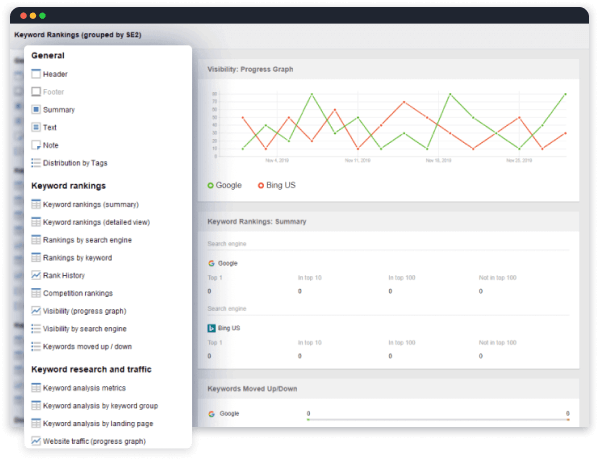
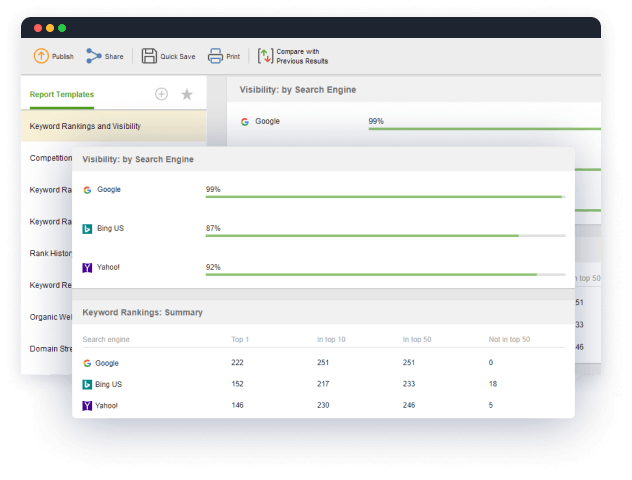
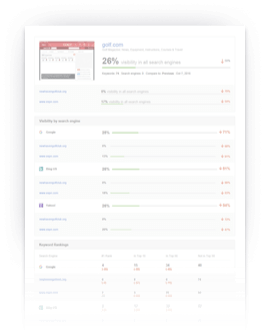
After you have collected all data you need from search engines, it is a perfect time to move on from the Keywords section to Report. When you click on the Report tab in your project, Rank Tracker will automatically generate a structured report that can be presented to clients or kept for internal use. There is a concise report guide on our site to help you interpret results Rank Tracker reports provide.
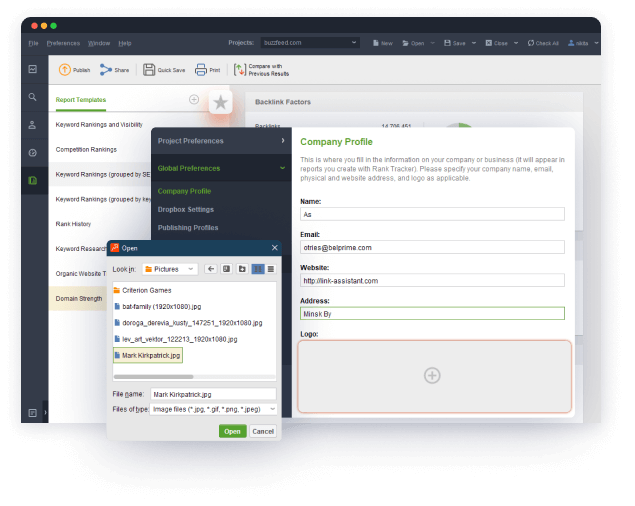
If you haven't filled out your company profile, you'll be offered to do so before generating the report (this info will be used to sign your report).
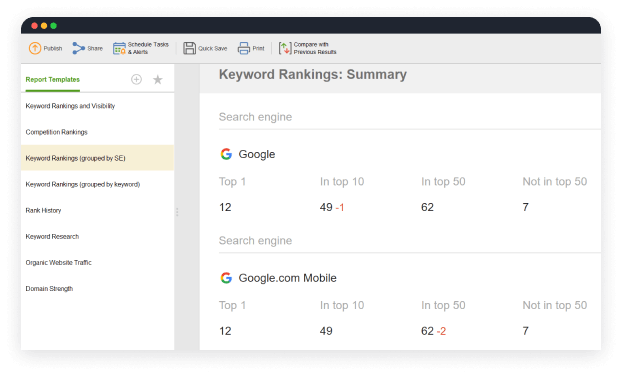
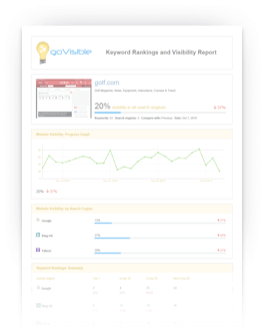
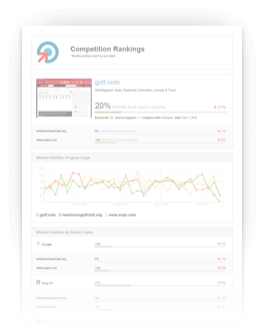
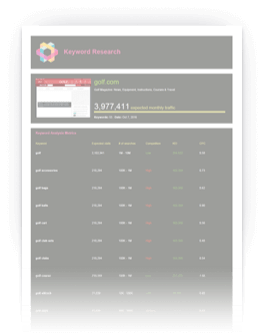
The contents, structure and design of the report Rank Tracker displays are determined by the active report template (its name appears in the upper-right corner of the Report section). Please click on the arrow next to it to view the list of ready-made report templates that you can apply to your report:
- Keyword Rankings and Visibility Report
- Competition Rankings Report
- Keyword Rankings Report (grouped by keyword)
- Keyword Rankings Report (grouped by SE)
- Keyword Research Report
- Website Visitors (Traffic) Report
Creating Report Templates
If you would like to create a custom report template, please go to Preferences -> Report Templates and click Add.
Step 1: Choose Type of Report
Please select the type of report you would like to create:
- Keyword Rankings and Visibility Report
- Competition Rankings Report
- Website Visitors (Traffic) Report
- Keyword Research Report
Step 2: Customize Structure
At step 2 you will be offered to select sections that will appear in your report. Please use the Select All/Select None buttons to quickly check/uncheck all of the sections. You can re-arrange the sections with the help of the Move up and Move down buttons.
Step 3: Customize Look
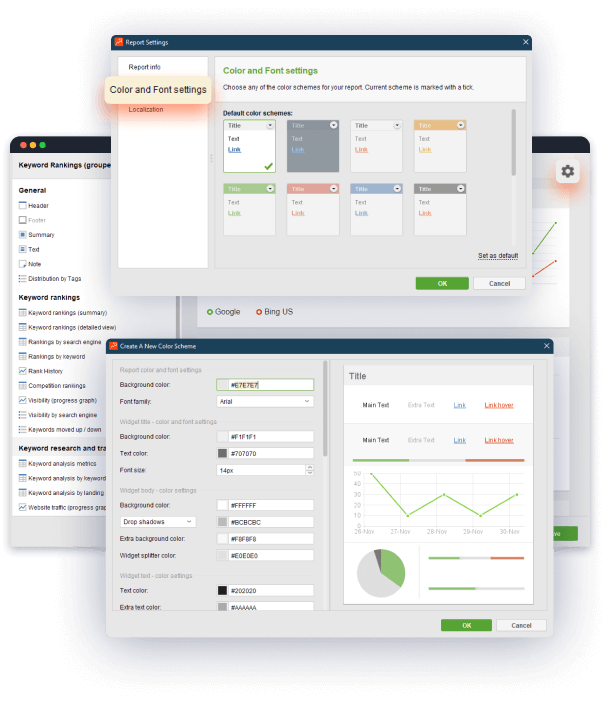
At this step you can choose a font and color scheme for your template. Preview is available in a box under the drop-downs.
Step 4: Create Report Introduction
If you have chosen to enhance your report with a personalized introduction at step 2, you will need to enter your text to the Code tab. Please remember to use HTML tags to format it. Switch to the Preview tab to find out how the changes will appear on your report.
Step 5: Assign Name and Title to Template
Please enter a title that will appear in the header and title bar of reports created through this template.
Also please choose a name for the template. It is under this name that it will show on the list of templates in your Rank Tracker projects. It can be a good idea to use a descriptive name that lets you easily tell what the template does e.g. "Rankings & visibility overview w/custom introduction". Press Finish to complete the set-up.
The new report template will be added to the list of available templates (Preferences -> Report Templates).
To apply the template to your report, please select its name from the drop-down list on the Report tab.
Managing Report Templates
All available report templates are stored under Preferences -> Report Templates. The Templates button in the upper-right corner of the Report tab works a shortcut to this menu.
The templates on the list are available for use within all of your Rank Tracker projects.
There are 2 sets of tools to manage them:
- a horizontal toolbar above the list of templates,
- a vertical context menu that appears when you right-click on the name of a template.
Both of them support the following functions:
- Edit. This feature lets you modify the source of existing report templates. Using it, you can exercise full control over the look 'n' feel of your reports and data they carry.
- Move up & Move down. These buttons are to help you re-arrange the list of available report templates.
- Remove. Please use this command to delete a report template from Rank Tracker.
- Clone. This option lets you make quick copies of existing report templates.
Quick-Saving Reports to Local Hard Drive
Rank Tracker reports can be quickly exported to your hard drive as .pdf or .html documents.
Click the Quick Save button on the Report toolbar (it will activate a dialogue box). Please choose a folder on your computer to export the report to, enter a name for the file and specify a proper format for it (.html or .pdf). The .html option will be great if you would like to view the report in a browser. The .pdf format will suit those who are going to print out the document or view it in a paper format. Press Save when done.
Please hold on a moment while Rank Tracker is exporting the document to the destination folder. Please be prepared that .pdf files (especially larger ones) can take a little longer to generate. A progress bar will indicate how the process is moving on. You can interrupt it at any moment by clicking Stop.
You'll receive a confirmation once the report has been saved. Please click Yes to access the file or click No to close the window.
Publishing Reports
If you have read the previous section, you are already familiar with the Quick-Save feature. This is a basic command letting users export reports outside of their Rank Tracker projects. It is done by saving the reports to their computers. There also is a set of more advanced features that allow you to deliver reports to clients straight from the software.
All you need to do is create a profile (Publishing Profile) in which you specify how your report should be exported:
- uploaded to an FTP server using a built-in FTP client,
- sent by e-mail using a built-in e-mail client,
- saved to a specified folder on your hard drive.
Such a profile can be used for multiple report deliveries across all of your Rank Tracker projects. This saves you a necessity to re-enter your export preferences each time you would like to publish a report of yours. Moreover, you'll be able to deliver a report to multiple recipients simultaneously.
Please keep in mind that Publishing Profiles are to copy data from the Report tab to external files. If you would like to export raw data from the Keywords section of your project, you will need to create an export template for it.
Creating Publishing Profile
You will need to create a new publishing profile to get started with automated report delivery. This is done through Preferences -> Publishing Profiles. Please click Add and follow instructions for your delivery method (saving, e-mailing or FTP).
Saving Profile
Saving Profile
Step 1: Choose Report Format
Please select a format to save your report in: HTML or Adobe PDF. The former option will be great if you would like to view the report in a browser. The latter will suit those who are going to print out the document or view it in a paper format.
Step 2: Choose Report Delivery Option
Set delivery option to Save report locally on my hard drive.
Step 3: Specify File Destination
Please click on […] to choose a folder on your computer to save your report to. The path you specify will appear in the Save report to field. This is where you can find your report once the export has been completed.
There are several ways to customize the location of your report:
- Create a separate folder for each of your customers. Rank Tracker can distribute your reports by the customer they are created for. When you enable this feature, you will notice a variable attached to the file path - ENTER_CUSTOMER_NAME. When the export takes place, the variable will be replaced with the actual names of your customers specified under Preferences -> Customer Profile.
- Create a separate folder for each of your customer's websites. Rank Tracker can group together reports created for the same site.
- Create a separate folder using the current date. Please enable this option if you want Rank Tracker to arrange reports by the day. So files created on the same date will appear in their own folder.
Step 4: Give Name to Report
Here you should choose a name under which reports will be saved through this publishing profile. Please type it into the Add prefix field (or use the options below to have Rank Tracker name your report).
An extension will be added to the name automatically depending on the format you've chosen at step 1 (.html or .pdf).
The file's name can be automatically customized for each report you export through this publishing profile. There are several ways to do it:
- Append customer's name. When this option is selected, Rank Tracker will include the name from Preferences -> Customer Profile into the name of the report.
- Append customer's website address. This feature lets you name report files using customers' domains taken from Preferences -> Customer Profile. If you would like to, Rank Tracker can use the full URL of the page the project has been created for (the Append the full page URL feature).
- Append current date. Please mark this checkbox if you would like the name of your report to contain the date it has been created on.
If you would like the file to be compressed into an archive before saving, please mark the Zip the report option.
Step 5: Assign Name to Publishing Profile
Please choose a name for the publishing profile you have just created. It's preferable to use a descriptive name that shows what the profile does, e.g. Save PDF to "My Documents".
[Close]
Emailing Profile
Emailing Profile
Step 1: Choose Report Format
Please select a format to save your report in: HTML or Adobe PDF (the latter option will be probably more suitable for e-mail delivery).
Step 2: Choose Delivery Option
Set delivery option to Send report via e-mail.
Step 3: Configure Mail Settings
Please type in an email address to send reports from and specify a password you access it through.
If you leave the Configure advanced settings option unchecked, Rank Tracker will try to detect your mail server address and port number automatically. If you enable the feature, you'll be offered to specify your mail server settings manually.
Step 4: Create Mail Message
At this step you will be able to create a message that will accompany reports you mail to clients through this publishing profile.
Please switch to the Code tab to edit the message. If you would like to send reports to multiple recipients through this publishing profile, please right-click on From, To or Subject. It will activate a context menu with a choice of fields your e-mail message can contain:
- From – sender's address taken from Preferences -> Company Profile -> Email
- To – recipient's address taken from Preferences -> Customer Profile -> Email
- CC (carbon copy) – additional recipients whose addresses will be visible to the primary recipient
- BCC (blind carbon copy) – additional recipients whose addresses will be hidden from the primary recipient
- Subject – the topic of your e-mail
Please click on the names of the fields you want to use (CC or BCC) and fill them out them with appropriate addresses. Please use commas to separate multiple entries.
There is a set of variables in Rank Tracker that you can use to automatically customize the default message for each report (they appear in red on the Code tab). Each variable displays a particular value from your project. Please view a full list below.
Customer name:
<[ECHO text="customer.name"/]>
Customer first name:
<[ECHO text="customer.firstName"/]>
Customer address:
<[ECHO text="customer.address"/]>
Customer website:
<[ECHO text="customer.website"/]>
Customer email:
<[ECHO text="customer.email"/]>
Company name:
<[ECHO text="company.name"/]>
Company first name:
<[ECHO text="company.firstName"/]>
Company address:
<[ECHO text="company.address"/]>
Company website:
<[ECHO text="company.website"/]>
Company email:
<[ECHO text="company.email"/]>
Step 5: Define Naming Rules for Report
At this step you'll be offered to specify how reports emailed through this publishing profile should be named. Please type in a name to the Add prefix field or use the options below to have Rank Tracker name your reports.
An extension will be added to the name automatically depending on the format you've chosen at step 1 (.html or .pdf).
The file's name can be automatically customized for each report you export through this publishing profile. There are several ways to do it:
- Append customer's name. When this option is selected, Rank Tracker will add the name from Preferences -> Customer Profile -> Name to the name of the report.
- Append customer's website address. This feature lets you name report files using customers' domains taken from Preferences -> Customer Profile -> Website. If you would like to, Rank Tracker can use the full URL of the page the project has been created for (the Append the full page URL feature).
- Append current date. Please mark this checkbox if you would like the name of your report to show the date it has been created on.
If you would like the file to be compressed into an archive before saving, please mark the Zip the report option.
Step 6: Give Name to Publishing Profile
Please type in a name under which the new publishing profile will appear in your Rank Tracker projects. If possible, please use a descriptive name that explains what the profile is for – e.g. Send by email (CC to management, BCC to myself). Click OK to save the profile you've created.
[Close]
FTP Profile
FTP Profile
Step 1: Choose Report Format
Please select a format to save your report in: HTML or Adobe PDF (the former option will be probably more suitable for server upload).
Step 2: Choose Report Delivery Option
Set delivery option to Upload report onto a website via FTP.
Step 3: Configure FTP Settings
At this step you will need to specify the address of the remote server your report should be uploaded to. In most cases it has a format like this: ftp.your-domain.com. Also please enter your user name and password. If you are not sure which access credentials to use, please obtain them from your client (or from your system administration if you are uploading reports to your company's server).
If you leave the Configure advanced settings option unchecked, Rank Tracker will try to detect your server settings automatically. If you enable the feature, you'll be offered to enter them manually.
Step 4: Enter FTP Server Settings (Optional)
Please specify your FTP settings so that Rank Tracker could connect to the server and upload reports there.
FTP (standard File Transfer Protocol) is the most frequently used one. Default server port is 21. You might want to try these standard settings first. And if they do not apply to your server, please consult the system administrator.
Enable the Use passive FTP option if you are behind a firewall. If you like, you can also specify the name of a directory that you are going to publish reports to (Rank Tracker will open it at the next step). If no directory is specified, all of the folders you have access to will be displayed.
Step 5: Specify Remote Directory to Upload Report to
Please select a home directory to upload reports to and mark it as a web root. Specify a sub-folder to be used for reports (if applicable). The URL in the Published files will appear... field will show where the report will be published at.
Step 6: Define Naming Rules for Report
At this step you'll be offered to specify how reports uploaded through this publishing profile should be named. Please type in a name to the Add prefix field or use the options below to have Rank Tracker name your reports.
An extension will be added to the name automatically depending on the format you've chosen at step 1 (.html or .pdf).
The file's name can be automatically customized for each report you export through this publishing profile. There are several ways to do it:
- Append customer's name. When this option is selected, Rank Tracker will add the name from Preferences -> Customer Profile -> Name to the name of the report.
- Append customer's website address. This feature lets you name report files using customers' domains taken from Preferences -> Customer Profile -> Website. If you would like to, Rank Tracker can use the full URL of the page the project has been created for (the Append the full page URL feature).
- Append current date. Please mark this checkbox if you would like the name of your report to contain the date it has been created on.
If you would like the file to be compressed into an archive before uploading, please mark the Zip the report option.
Step 7: Give Name to Publishing Profile
Please type in a name under which the new publishing profile will appear in your Rank Tracker projects. If possible, please use a descriptive name that explains what the profile is for – e.g. Upload to client server. Click OK to save the profile you've created.
[Close]
Publishing Mechanism
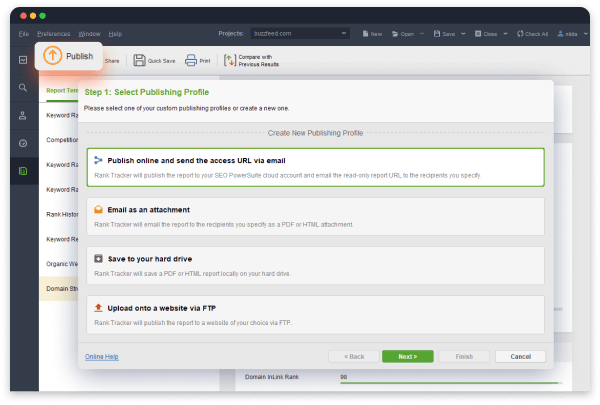
To save a report outside of Rank Tracker, please click Publish on the Report toolbar. It will initiate a pop-up wizard that will guide you through a couple of easy steps.
Step 1: Choose Publishing Profile
Please select a publishing profile you would like to export your report through. If you would like to save or send the report to multiple locations, please mark several publishing profiles. If none of the existing profiles applies, please click Add to create a new one (you'll be prompted to do it automatically if your list of profiles is empty).
Step 2: Publishing Process
Please hold on while the report is being published. A progress indicator will show you how the task is moving on. You can interrupt the process by clicking Stop.
Step 3: Delivery Confirmation
Once the task has been completed, you will receive a confirmation message with a delivery status. Please click Finish to complete the task.
Managing Publishing Profiles
You can access your publishing profiles through Preferences -> Publishing Profiles. All of the profiles on the list are available for use within all of your Rank Tracker projects.
There are 2 sets of tools to manage them:
- a horizontal toolbar above the list of profiles,
- a vertical context menu that appears when you right-click on the name of a profile.
Both of them support the following functions:
- Add. A command used to create new publishing profiles.
- Edit. This feature lets you modify the properties of existing publishing profiles.
- Remove. Please use this command to delete a profile from Rank Tracker.
- Clone. This option lets you make quick copies of existing publishing profiles.