Scheduling Tasks
Table of Contents
Creating Scheduled Tasks
Rank Tracker lets you update projects, publish reports or export data even when you are not at your desk. All you need to do is create tasks for jobs you would like to automate in Scheduler.
- Check rankings in search engines. Rank Tracker will check/update all keywords from selected projects using settings saved for each of these projects (preferred search engines, rank checking mode, competitors etc.).
- Update keyword efficiency statistics. Rank Tracker will check/update all keywords in projects involved. It will observe KEI settings assigned to each of the projects.
- Publish reports. Rank Tracker will save or send out project reports available in the Report section through a publishing profile you specify.
- Export data. Rank Tracker will copy a custom data selection from the Keywords tab to an external file (.txt/.csv, .sql, .html or .xml).
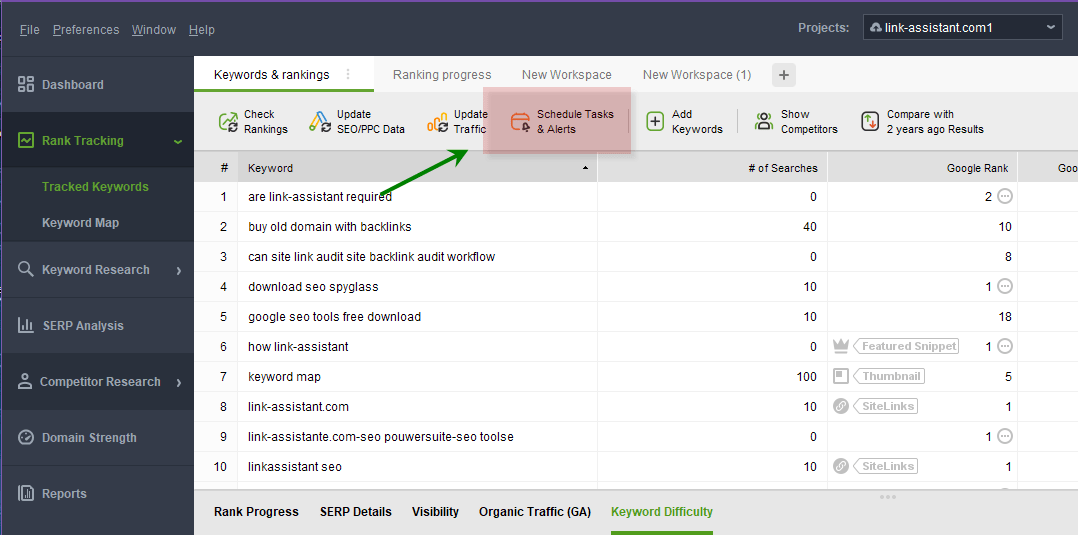
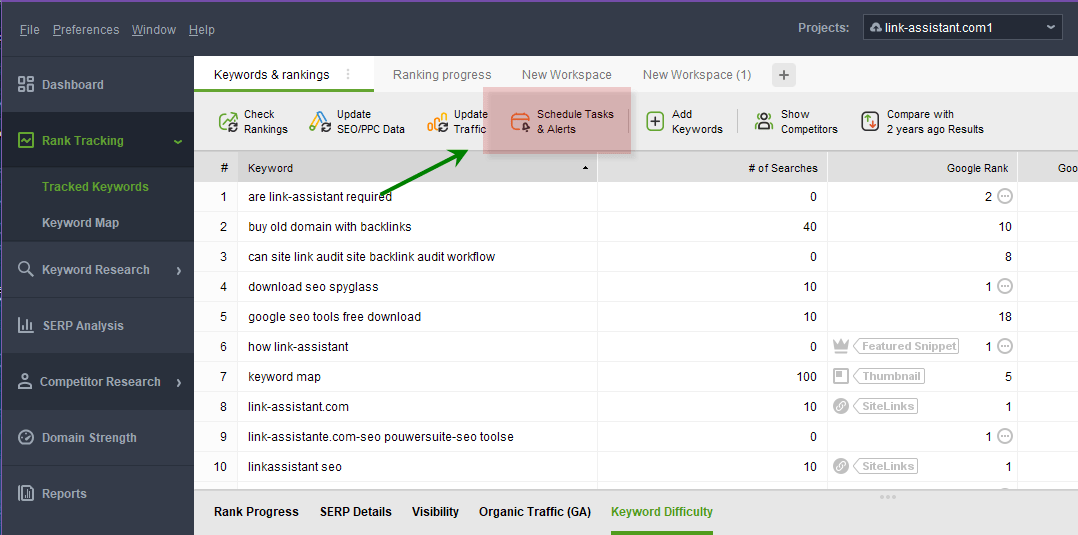
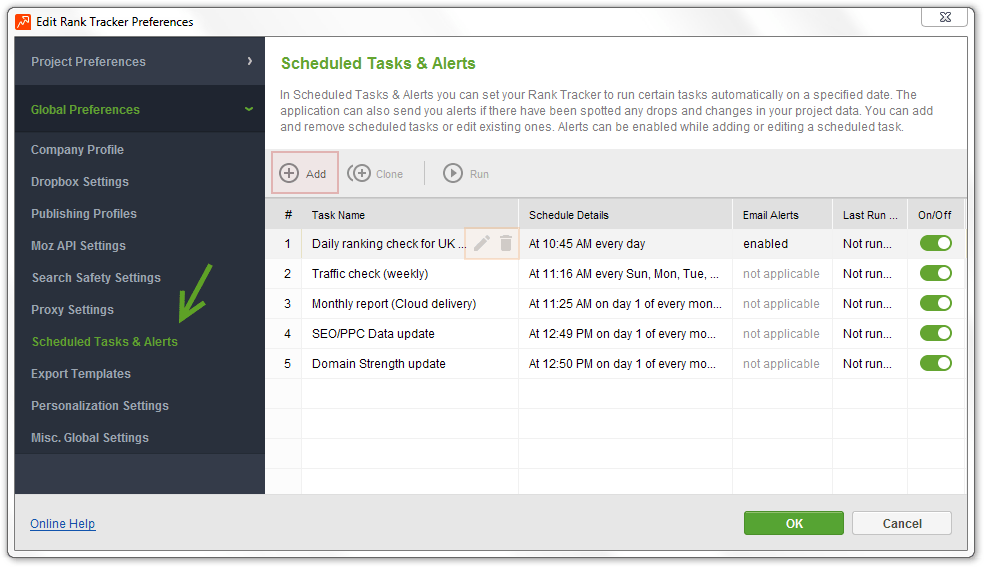
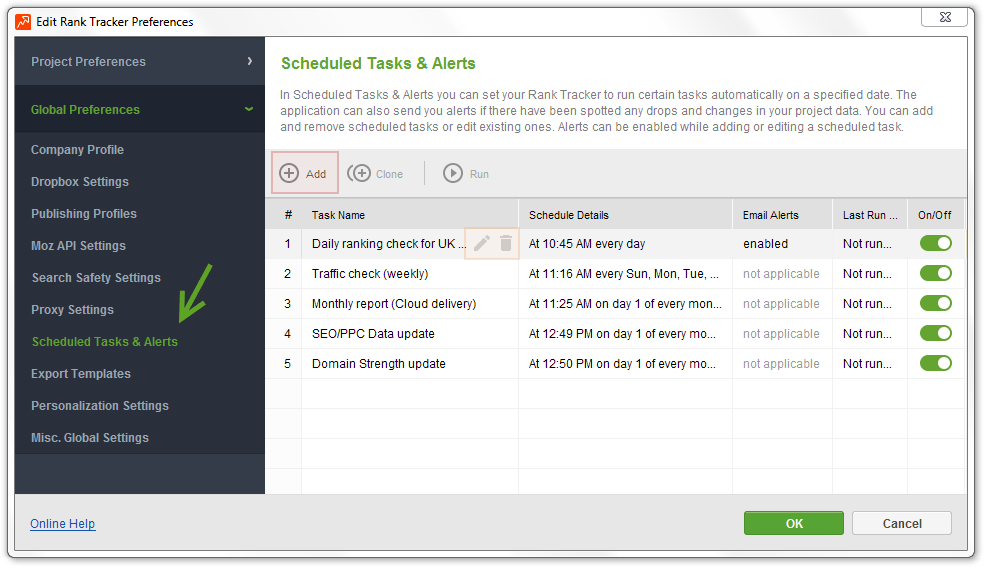
If you'd like to automate any of the above tasks, please go to Preferences -> Scheduler and click Add. Rank Tracker will unfold a wizard to guide you through the set-up process. Please follow instructions for your type of task.
Rank Checking
Rank Tracker is a precise tool to find out how your website in ranking in a variety of search engines. It checks each of your keywords in the real time just like you would do it manually and presents the results in a neat table.
You can initiate a rankings update manually as described in this section or you can have Rank Tracker do the job all by itself at a time convenient to you.
Step 1: Choose Task Type
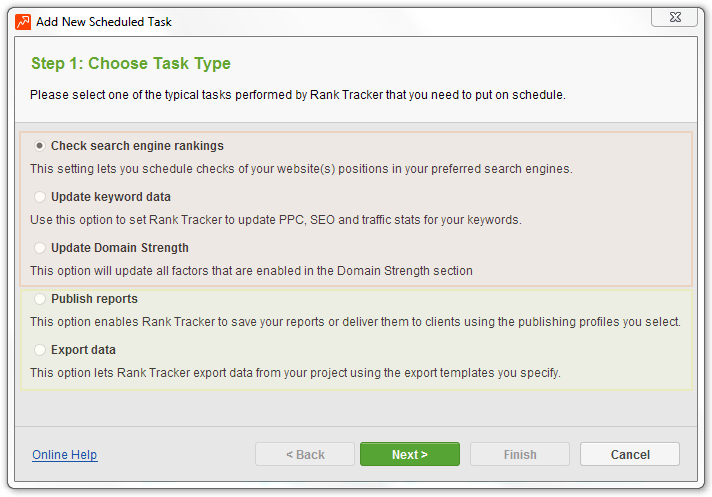
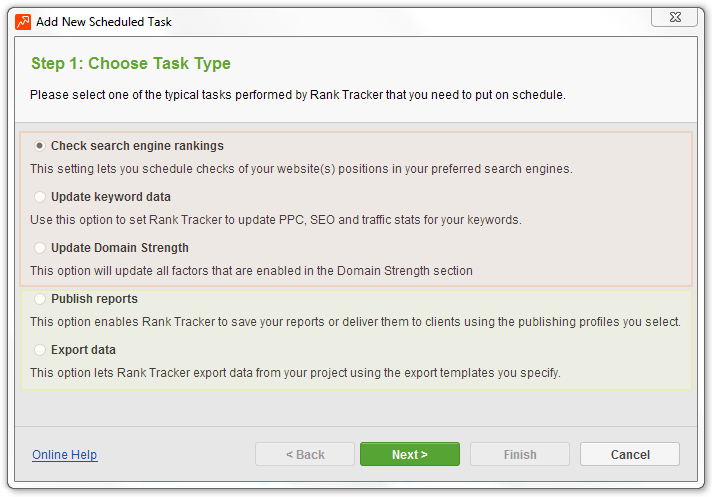
Set task type to Check search engine rankings and hit Next to proceed.
Step 2: Choose Projects
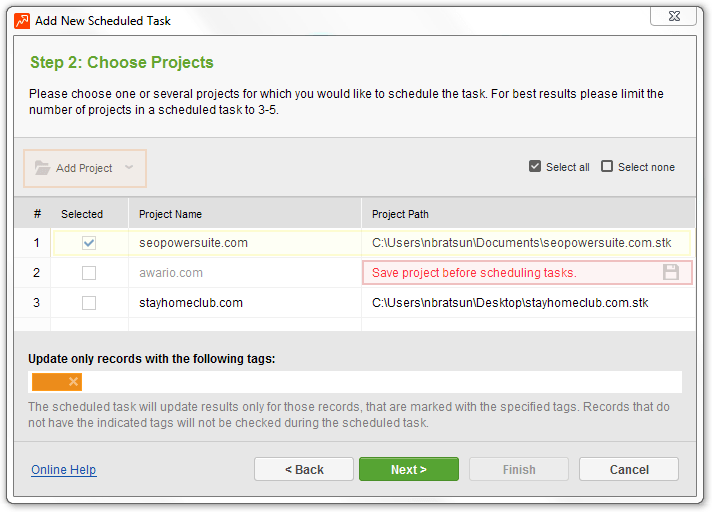
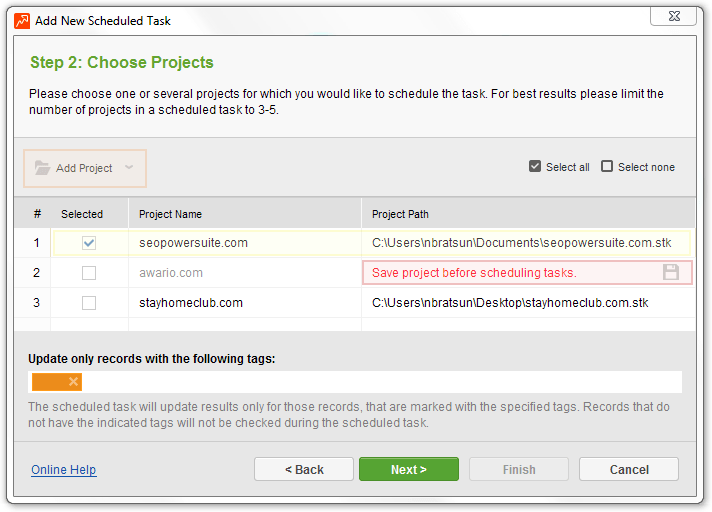
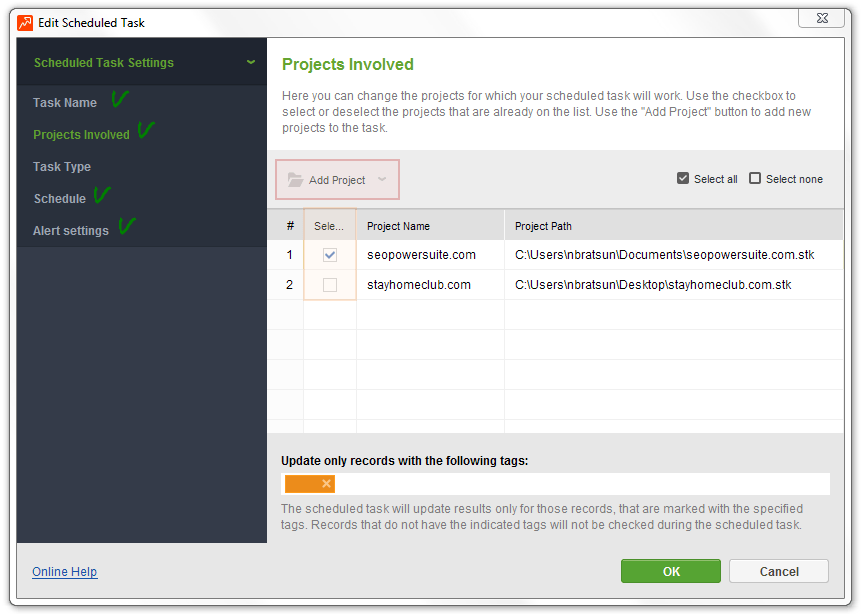
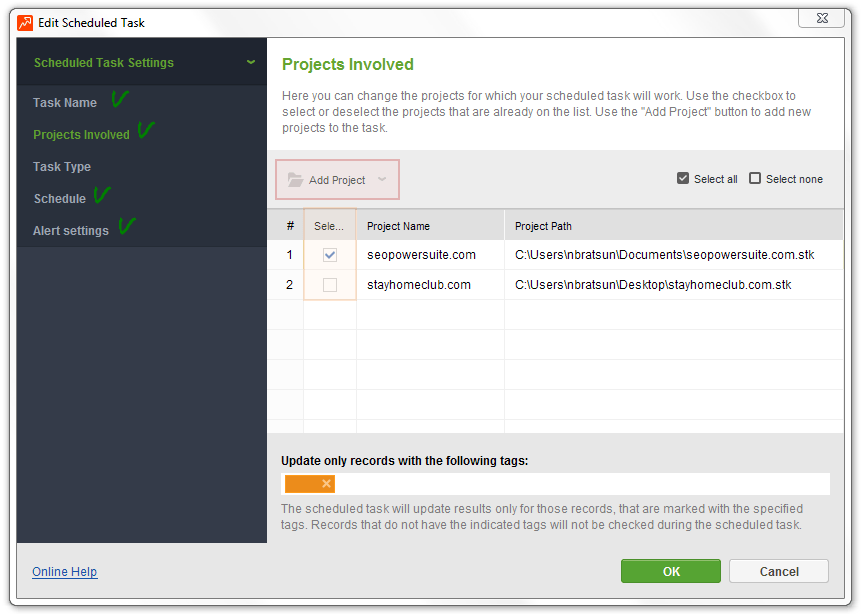
The wizard will show you the list of all currently open .stk projects. Please mark the checkboxes next to the names of projects you would like to include in this task. The Select All button lets you tick all of the projects displayed.
If you would like to add a project that does not appear on the list, please use the Add project command and specify a path to the file on your hard drive. Please note that only saved projects can be selected.
Although there are no technical limitations to the number of projects a scheduled task can contain, it is not very much advisable to cram too many files into a single task. For best results we suggest limiting the number to 6-8 smaller projects (up to 100 keywords) or 3-5 larger ones (100+ keywords). If you have more projects than that, please distribute them among several tasks. This will make Rank Tracker's searching activity look less intense and will therefore help reduce the risk of a temporary block in search engines. Also updating large groups of projects in batches reduces the amount of memory consumption which helps ensure smooth performance.
Step 3: Set Start Time and Recurrence
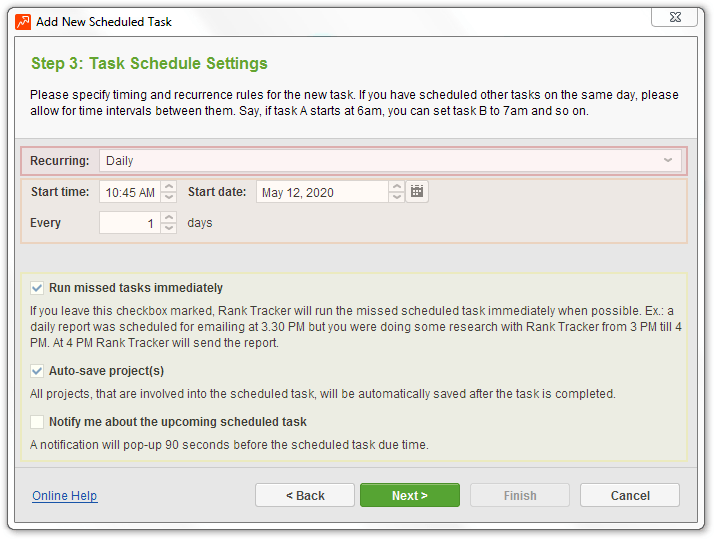
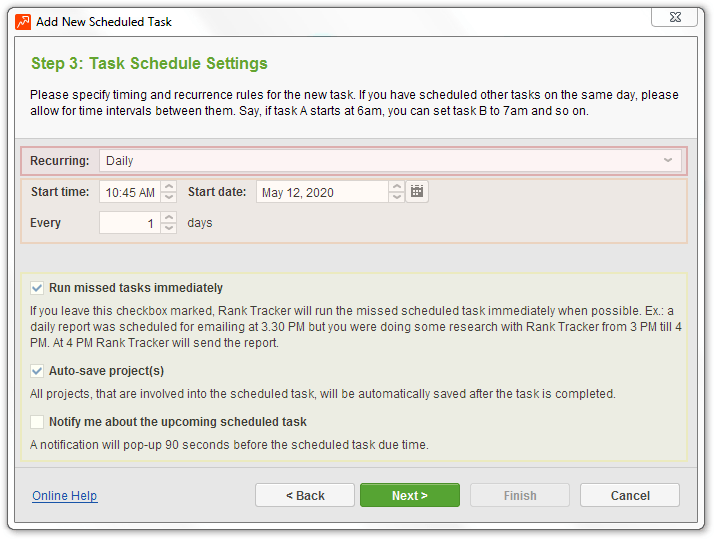
At this step you will need to set timing and recurrence rules for the new scheduled task. There is also the Run missed tasks simultaneously option prompting Rank Tracker to re-run missed/delayed tasks.
If you already have other tasks in Scheduler, it's necessary to consider their timing. Please avoid scheduling several scheduled jobs to start at the same time. Ideally, there should be time intervals between them. Spreading tasks evenly throughout a day/week will help you ensure each task is completed exactly when it should.
For example, if you have a task that normally takes about 15 minutes to complete, you could add a 30-minute break to it and schedule the next one to start in 45 minutes or – even better – in a hour. Here is how it will look like:
- Task #1. Update rankings for A, B, and C (~10 minutes with human emulation pauses): starts at 5am
- Task #2. Update rankings for F (~20 minutes with human emulation pauses): starts at 6am
- Task #3. Check KEI for A, C, D, and F (~15 minutes with human emulation pauses): starts at 7am
If properly configured, all the 3 of the tasks should be ready by 7:30am.
Step 4: Give Name to Task
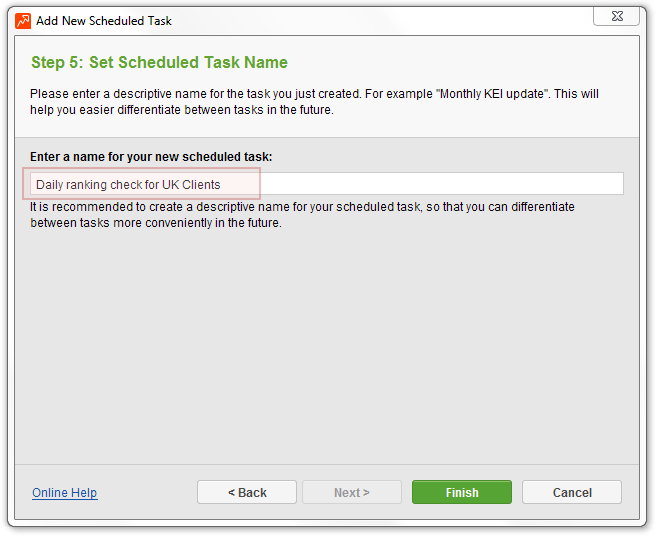
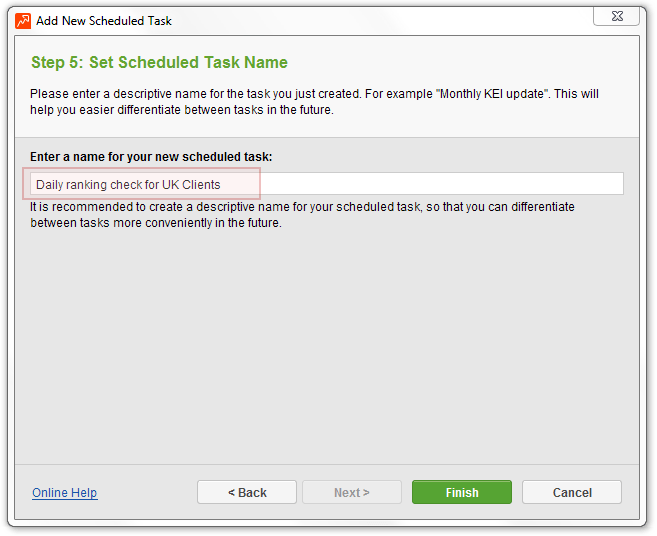
Please choose a name for the task. Use a descriptive name that explains what the task does, e.g. Weekly rankings update for XYZ. When the number of scheduled tasks grows, descriptive names will make it easier for you to navigate through the list.
Please hit Finish to complete the wizard or hit Cancel to start over. Once the task has been created, it will appear on your list of scheduled tasks under Preferences -> Scheduler.
Please don't forget to click OK when done. It will close Scheduler and notify Rank Tracker that the scheduled activities are ready and can be started in their due time.
Keyword Analysis
Any successful SEO campaign relies on the right keywords. So before starting to optimize your site (or - even better - before launching a site and choosing a domain name for it), you need to think carefully which keywords each of your landing pages is going to target. Of course you can collect all necessary data manually but it will save you days of hard work to assign the task to Rank Tracker. Once Rank Tracker is done with its searches and calculations, you'll get a clean table with all necessary statistics in front of you. You can read more about these data in the Keyword Research section.
Keyword research tasks can be launched manually or can be set to run on a user-defined schedule. If you are already familiar with this functionality, you might want to try the second option. Please go to Preferences -> Scheduler -> Add and follow the wizard.
Step 1: Choose Task Type
Set task type to Update keyword efficiency statistics and hit Next to proceed.
Step 2: Choose Projects
The wizard will show you the list of all currently opened .stk projects. You will be offered to select projects to include into the task. Please mark the checkboxes next to the names of appropriate projects. The Select All button lets you tick all of the boxes.
If you would like to add a project that does not appear on the list, please use the Add project command and specify a path to the file on your hard drive. Please note that only saved projects can be selected.
Although there are no technical limitations to the number of projects a scheduled task can contain, it is not very much advisable to cram too many files into a single task. For best results we suggest limiting the number to 6-8 smaller projects (up to 100 keywords) or 3-5 larger ones (100+ keywords). If you have more projects than that, please distribute them among several tasks. This will make Rank Tracker's searching activity less intense and will therefore help reduce the risk of a temporary block in the search engine you are pulling competition from. Also updating large groups of projects in batches reduces the amount of memory consumption letting your computer run faster.
Step 3: Set Start Time and Recurrence
At this step you will need to set timing and recurrence rules for the new scheduled task. There is also the Run missed tasks simultaneously option to re-run missed/delayed tasks. If for some reason the task hasn't been launched on time, Rank Tracker will initiate it later as soon as it's free from other tasks.
If you have already scheduled some other tasks to start on this day, it's necessary to consider their timing. Please avoid scheduling several scheduled jobs to start at the same time. Ideally, there should be time intervals between tasks. Spreading them evenly throughout a day/week will help you ensure each task will be completed exactly when it should.
For example, if you have a task that normally takes about 15 minutes to complete, you could add some extra 30 minutes to it and schedule the next one to start in 45 minutes or – even better – in a hour. Here is how it will look like:
- Task 1. Update rankings for A, B, C, D and E (~10 minutes with human emulation pauses): starts at 5am
- Task 2. Check Keyword Statistics for A, C, D, and F (~15 minutes with human emulation pauses): starts at 7am
- Task 3. Update rankings for F, G, and H (~20 minutes with human emulation pauses): starts at 6am
- Task 4. Check Keyword Statistics for A, C, D, and F (~15 minutes with human emulation pauses): starts at 7am
If properly configured, all the 3 of the tasks should be done by 7:30am.
Step 4: Give Name to Task
Please choose a name for the task. Use a descriptive name that will explain what the task does, e.g. Keyword Analytics Update, Main List. When the number of scheduled tasks grows, descriptive names will make it easier for you to navigate through the list.
Please hit Finish to complete the wizard or hit Cancel to start over. Once the task has been created, it will appear on your list of scheduled tasks under Preferences -> Scheduler.
Please don't forget to click OK when done. It will close Scheduler and notify Rank Tracker that the scheduled activities are ready and can be started in their due time.
Report Delivery
The Report section of Rank Tracker projects contains reports based on data a user has collected on the Keywords tab. These reports can be saved to a user's hard drive or delivered to specified recipients by e-mail or through an FTP upload. Report delivery can be initiated manually as described in this section or through Scheduler. If you would like Rank Tracker to save/publish project reports for chosen projects automatically, please go to Preferences -> Scheduler, click Add and follow the wizard.
Step 1: Choose Task Type
Set task type to Publish reports and hit Next to proceed.
Step 2: Choose Projects
The wizard will show you the list of all currently opened .stk projects. You will be offered to select projects to include into the task. Please mark the checkboxes next to the names of appropriate projects. The Select All button lets you tick all of the projects displayed.
If you would like to add a project that does not appear on the list, please use the Add project command and specify a path to the file on your hard drive. Please note that only saved projects can be selected.
Step 3: Choose Report Template to Use
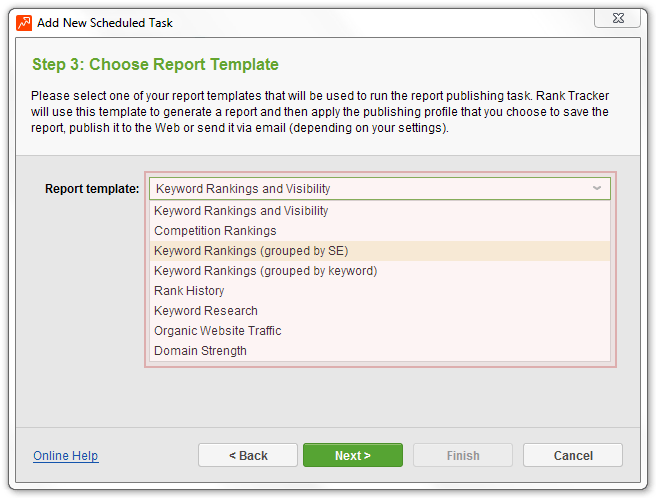
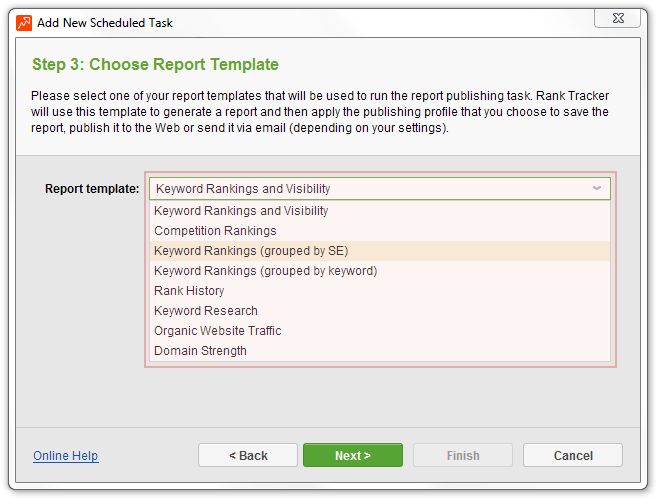
Please use a drop-down list to select a report template to dress project data in. The template will determine the contents and the structure of the file Rank Tracker will create. If you aren't sure which one to choose, please check out sample reports on our site first.
Step 4: Choose Publishing Profile
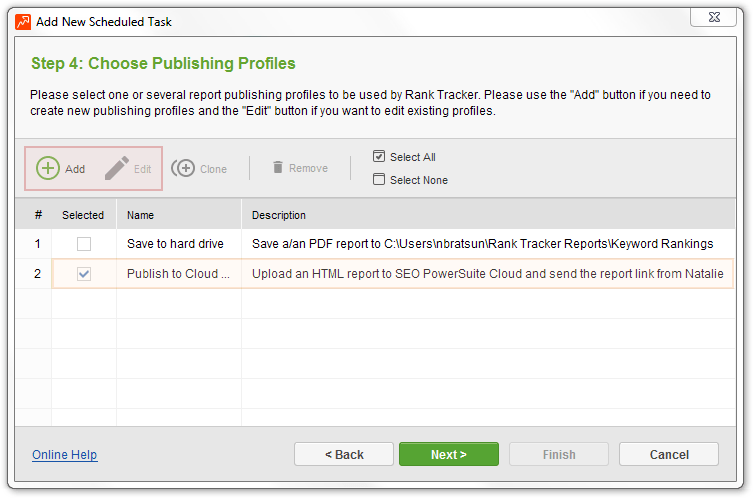
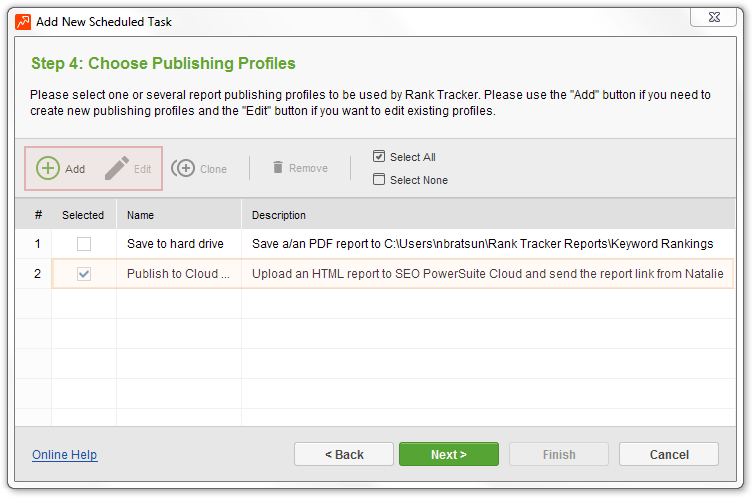
At step 4 you'll be asked to choose a delivery method to use. Please feel free to select as many of them as needed to send your reports to multiple locations/recipients. If there aren't any publishing profiles available yet, you'll be prompted to create one.
Step 5: Set Start Time and Recurrence
At this step you will need to set timing and recurrence rules for the new scheduled task. There is also the Run missed tasks simultaneously option to re-run missed/delayed tasks. If Rank Tracker didn't manage to carry out the task when it was supposed to (for example because your computer was turned off), it will send out the reports later instead of leaving the task incomplete.
Step 6: Give Name to Task
Please choose a name for the task. Use a descriptive name that explicitly states what the task does, e.g. Email reports to partners + hard drive copies. As the number of scheduled tasks grows, descriptive names will make it easier for you to navigate through the list.
Please hit Finish to complete the wizard or hit Cancel to start over. Once the task has been created, it will appear on your list of scheduled tasks under Preferences -> Scheduler.
Please don't forget to click OK when done. It will close Scheduler and notify Rank Tracker that the scheduled activities are ready and can be started in their due time.
Data Export
Rank Tracker lets you quickly copy data from your work area to external files or export it to a variety of formats using advanced export options. If you like, you can set up the tool to export data it has collected on a certain schedule. Just go to Preferences -> Scheduler and click Add. Choose which export tasks you would like to hand over to Scheduler.
Step 1: Choose Task Type
Set task type to Export data and hit Next to proceed.
Step 2: Choose Projects
The wizard will show you the list of all currently opened .stk projects. You will be offered to select projects to include into the task. Please mark the checkboxes next to the names of appropriate projects. The Select All button lets you tick all of the projects displayed.
If you would like to add a project that does not appear on the list, please use the Add project command and specify a path to the file on your hard drive. Please note that only saved projects can be selected.
Step 3: Select Export Template
At step 3 Rank Tracker will show you the list of available export templates. Please choose an appropriate one and click Next. If you haven't created any export templates yet, you'll be offered to do it right now.
Please note that if you would like to export data to several formats, you will need to create a separate publishing profile for each of them.
Step 4: Choose Export Destination
Please click on […] to choose a folder on your computer to save your export file to. The path you specify will appear in the Save exported data to field. This is where you can find your project data when the task is completed.
There are several ways to customize the location of your export file:
- Create a separate folder for each of your customers. Rank Tracker can distribute your export files by the customer they are created for. When you enable this feature, you will notice a variable attached to the file path - ENTER_CUSTOMER_NAME. When the export takes place, the variable will be replaced with the actual names of your customers specified under Preferences -> Customer Profile. For example, export files you prepare for SkySports Ltd. will appear in the following folder: E:\client reports\SkySports Ltd. "E:\client reports\" is the folder you have assigned for export data. "SkySports Ltd" is the directory Rank Tracker created automatically based on the name of the customer.
- Create a separate folder for each of your customer's websites. Rank Tracker can group together export files created for the same site. For example, all export files created for www.skysports.com will be saved to E:\client reports\www.skysports.com or E:\client reports\SkySports Ltd\www.skysports.com (if the first option is on).
- Create a separate folder using the current date. Please enable this option if you want Rank Tracker to arrange export files by the day. So files created on the same date will appear in their own folder.
Step 5: Give Name to Export File
Here you should choose a name under which the export file will appear in the folder you have specified at step 4. Please type it into the Add prefix field (or use the options below to have Rank Tracker name your export file).
File extension will be added to the name automatically depending on the export format you've chosen at step 3 (.txt, .html, .sql or .xml).
The file's name can be automatically customized for each export job Rank Tracker performs within this scheduled task. There are several ways to do it:
- Append customer's name. When this option is selected, Rank Tracker will include the name from Preferences -> Customer Profile into the name of the export file.
- Append customer's website address. This feature lets you name export files using customers' domains taken from Preferences -> Customer Profile. If you would like to, Rank Tracker can use the full URL of the page the project has been created for (the Append the full page URL feature).
- Append current date. Please mark this checkbox if you would like the name of your export file to contain the date it has been created on.
If you would like the file to be compressed into an archive, please mark the Zip the export option before proceeding to the next step.
Step 6: Set Time and Recurrence
Please specify when and how often the task should be performed.
If you already have other tasks scheduled on this day, please schedule this one to start at an interval after the completion of the previous task (20-30 minutes should be enough).
There is an option that you might want to enable here - Run missed tasks immediately. If Rank Tracker cannot perform the task at the time you've specified, it will go back to it as soon as there is a chance.
Step 7: Give Name to Scheduled Task
Please choose a name for the task you have just created. It's preferable to use a descriptive name that will explain what the task does, e.g. Export current rankings to TXT, main site. As the number of scheduled tasks grows, descriptive names will make it easier for you to navigate through the list.
Please hit Finish to complete the wizard or hit Cancel to start over. Once the task has been created, it will appear on your list of scheduled tasks under Preferences -> Scheduler.
Please don't forget to click OK when done. It will close Scheduler and notify Rank Tracker that the scheduled activities are ready and can be started in their due time.
Managing Scheduled Tasks
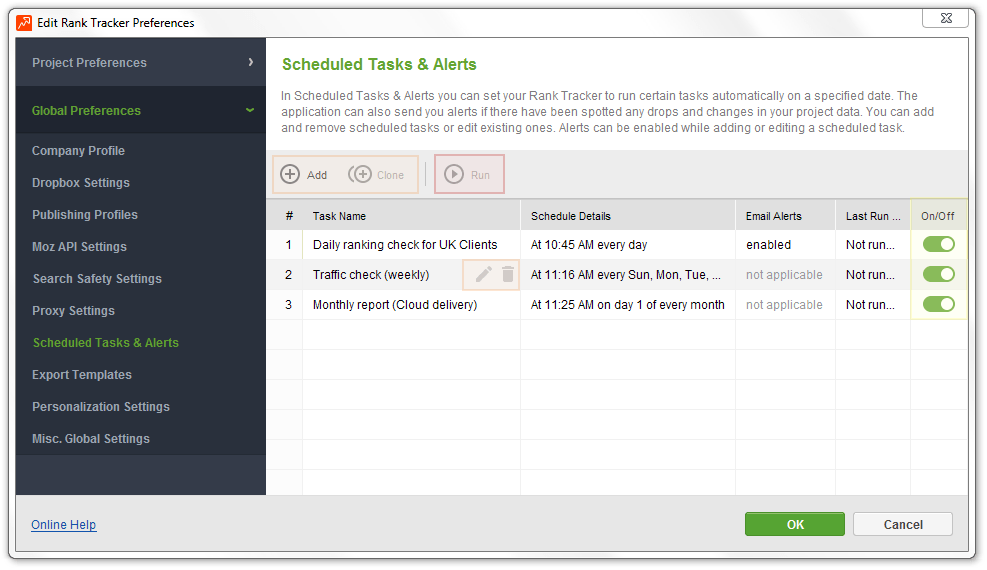
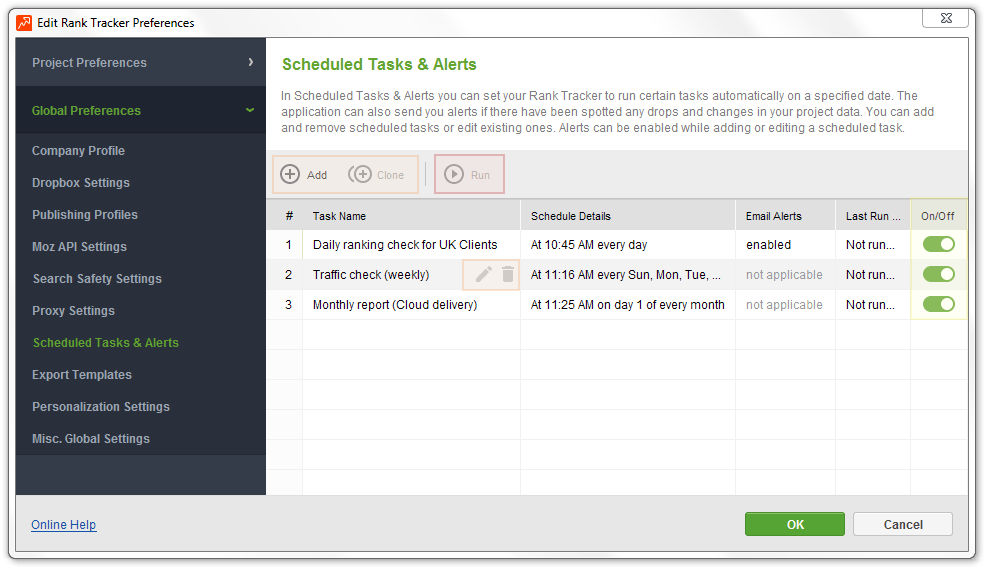
Using a toolbar under Preferences -> Scheduler, you can apply the following actions to scheduled jobs you've created:
- Edit: change a task's properties such as name, occurrence, run time, projects involved etc.
- Remove: this will clear a task off the list but will keep all data collected through it safely in the project file;
- Clone: use this command to create copies of existing tasks;
- Enable/Disable: the feature lets you turn off a task for a while without removing it – e.g. when you need to exit Rank Tracker to be able to use it on another computer under the same license key;
- Run: please use this command to manually initiate a scheduled process regardless of what time it is supposed to start at;
- Log: click this button when you want to view execution details (for example, to find out why a task hasn't been completed in time).
All of these options are also available through a context menu. Please right-click on any scheduled task to activate it.
Some more tips to help you configure Scheduler better:
- All projects involved into the scheduling activity should be accessible from your computer. For example, if one of the projects is located on another computer from the local network, this computer should be on at the time the scheduled task is supposed to run.
- Since you aren't likely to be around to type in captchas if they come up, it can be safer to proceed on a slower pace than usual to let Rank Tracker's searching activity stay unnoticed. This is especially true if you have a lot of keywords to update. To let Rank Tracker's searching activity stay unnoticed, please enable human emulation pauses and set the number of parallel queries to be equal to the number of search engines you are tracking. Alternatively, you can enable a captcha recognition service or make use of the proxy rotation feature. Also if your computer is connected to a local network, it could be a good idea to run Scheduler at out-of-office hours when other people and SEO tools aren't accessing search engines. This will reduce the number of queries originating from your network and will let Rank Tracker stay block-free longer on your computer.
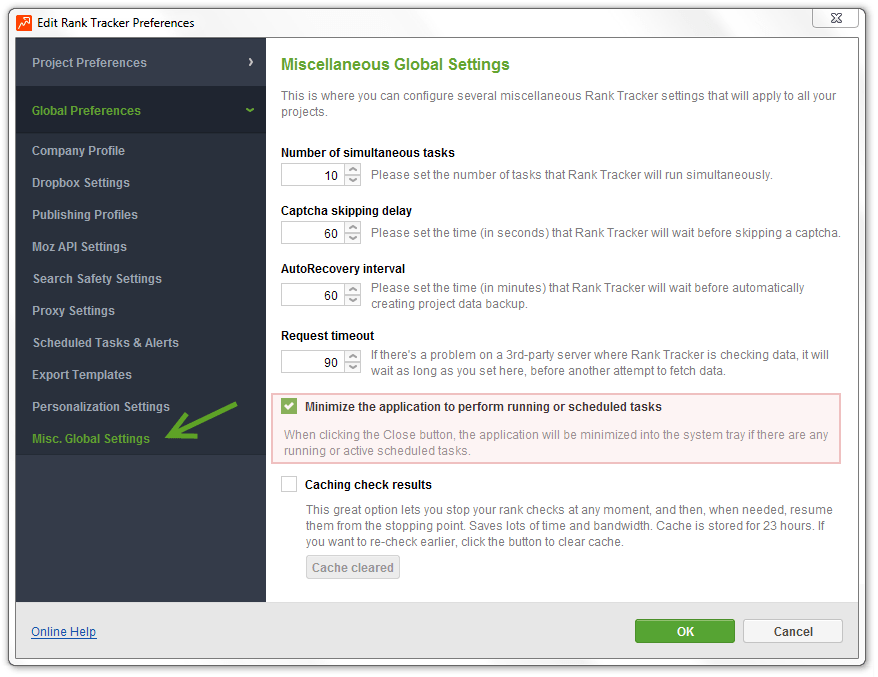
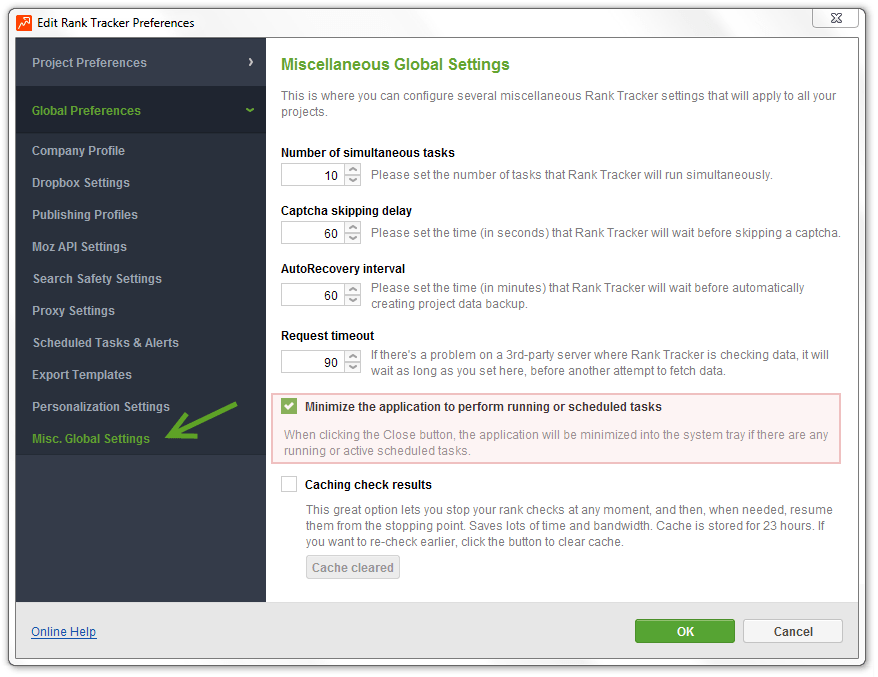
- The application needs to stay open or minimized to be able to perform scheduled tasks. Please turn off screen savers and disable auto hibernation in your computer settings. If you try to exit the app while there are active tasks under Preferences -> Scheduler, you will get a pop-up screen offering you to minimize the application. If you click Yes, Rank Tracker will be reduced to an icon in the notification area. To bring it back to its normal view, you'll need to double-click on the icon.