22983
•
18-minute read


SEO PowerSuite tools are multifunctional and super-customizable. And while you are already familiar (I hope you are!) with most of the tools’ functions, there are still plenty of little-known yet very useful features.
To shed light on SEO PowerSuite’s little-known functionality, we’ve analyzed hundreds of messages sent to our customer support team. This helped us learn which problems our users face most often, and how these issues are solved with the help of SEO PowerSuite software.
So, let’s get down to business. Today, I’m going to share 14 little-known but extremely useful hacks from SEO PowerSuite tools that can become your timesavers and help streamline your SEO workflow.
Bet you know that SEO PowerSuite tools let you automate any task you need. But in this case, automation goes even further.
In addition to setting up automatic tasks for the whole project, you can also set up tasks for specific pages or keywords. Just use tags for this purpose and you're good to go.
For example, you have a few tagged keyword groups in Rank Tracker. Some groups are more sensitive to SERP changes and need to be tracked more often.
Or, maybe, you’ve edited some pages optimized for specific keywords, and you need to track how these changes influence performance.
In both cases, you can use task automation by tags available in any SEO PowerSuite tool.
To set up task automation by tags, launch the SEO PowerSuite tool you need and go to your project or create a new one.
I’ll proceed with Rank Tracker, but the algorithm is the same in any tool.
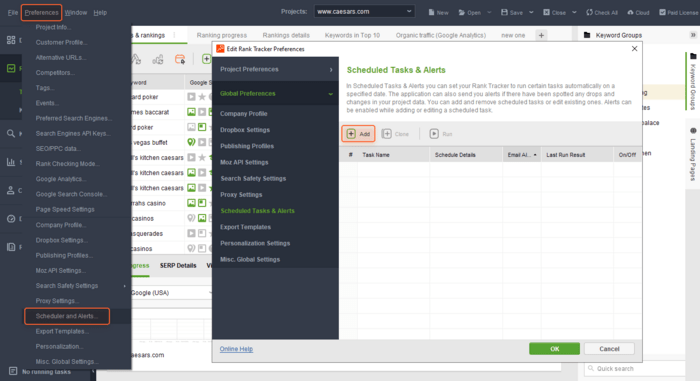
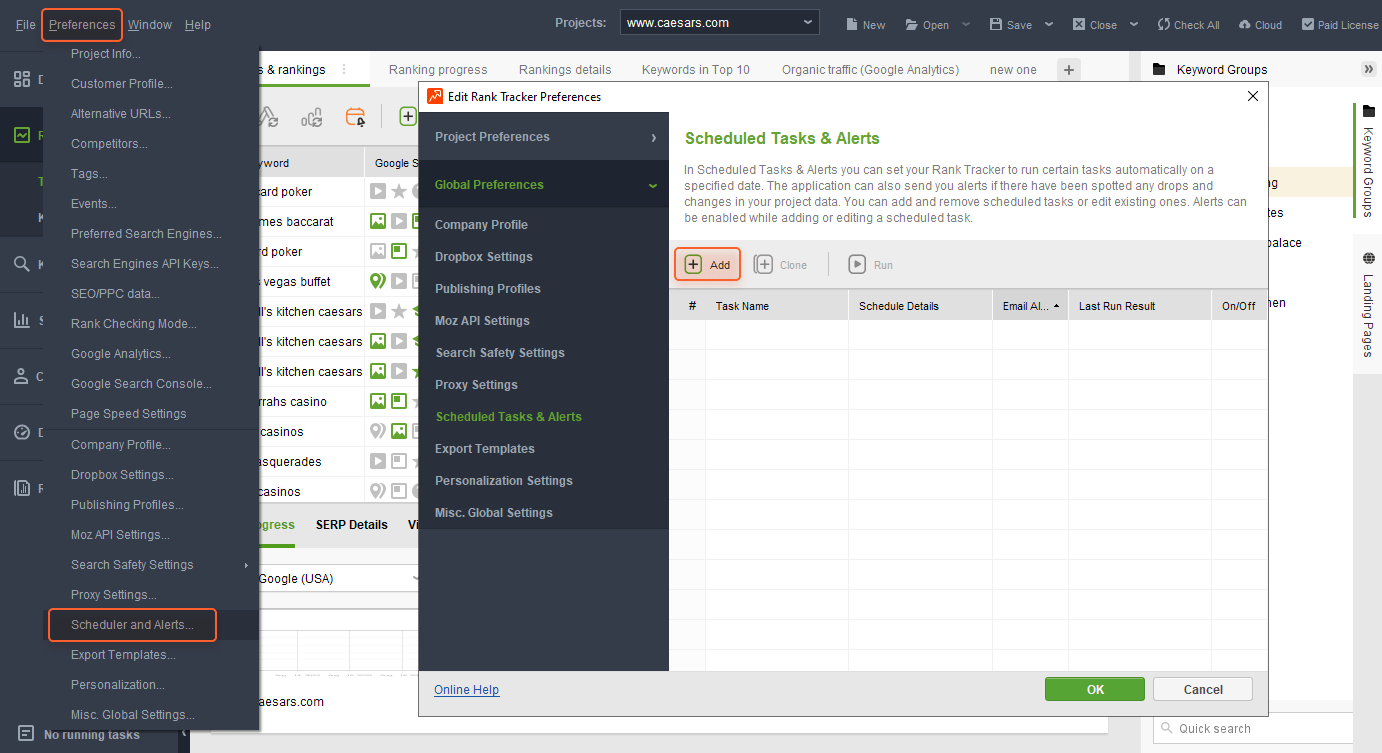
1) Go to Preferences > Scheduler and Alerts. In the modal window, click Add.
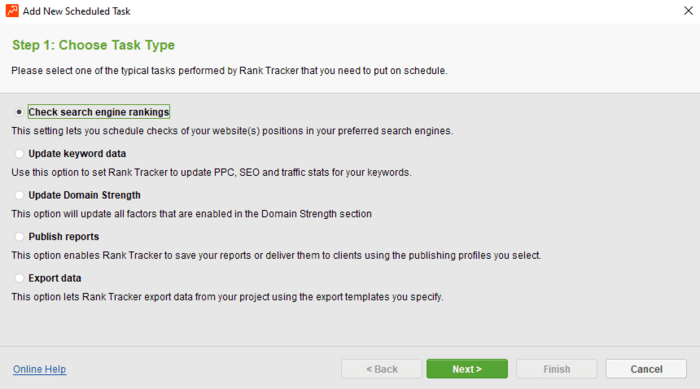
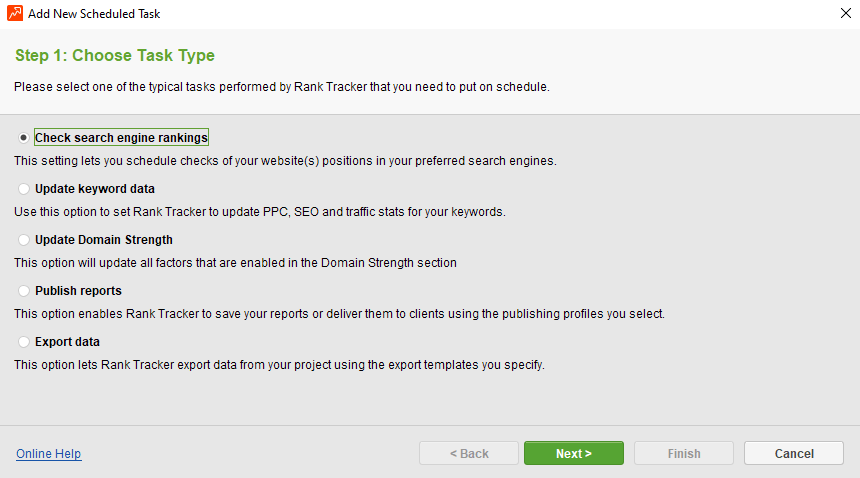
2) Choose the type of task you’ll be automating. In my example, I’m going to set up regular checks of rankings. Click Next.
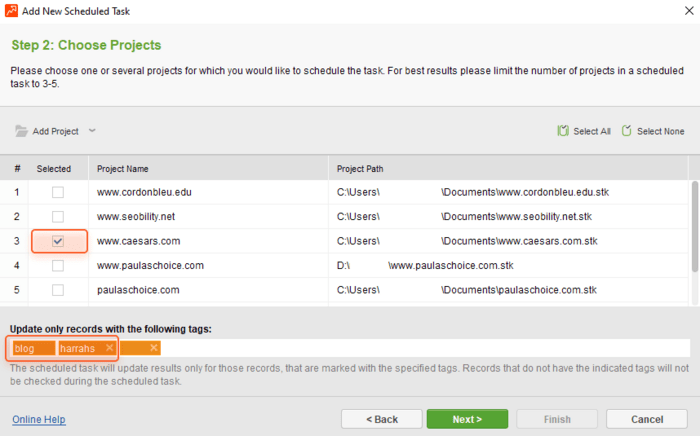
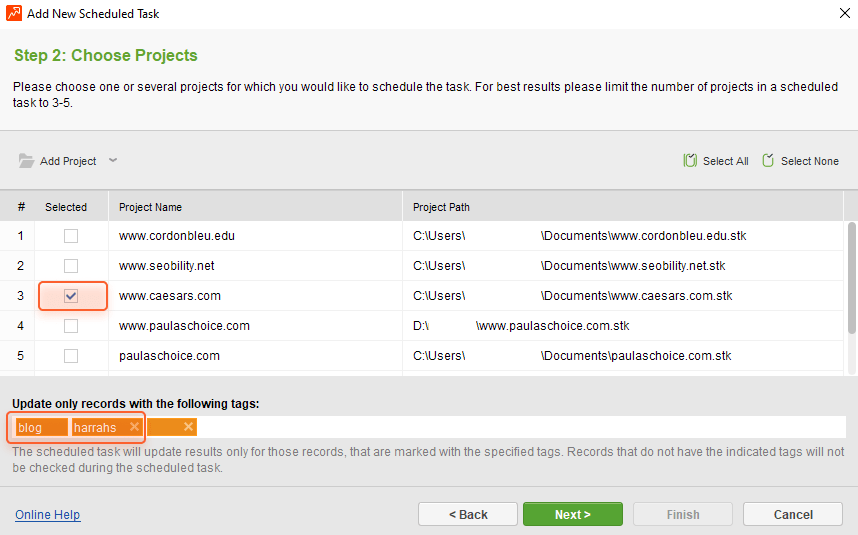
3) Select the project (or several ones) for which you’ll be setting up your task. In the same window, select the tags you’re going to update the data for — under the Update only records with the following tags line, enter tags one by one, pressing Enter after each tag. Hit Next.
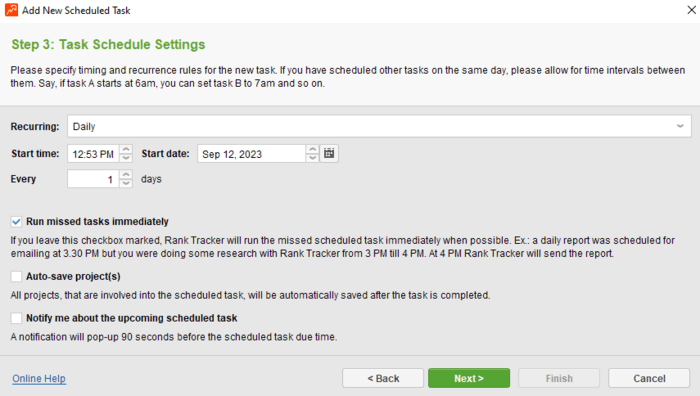
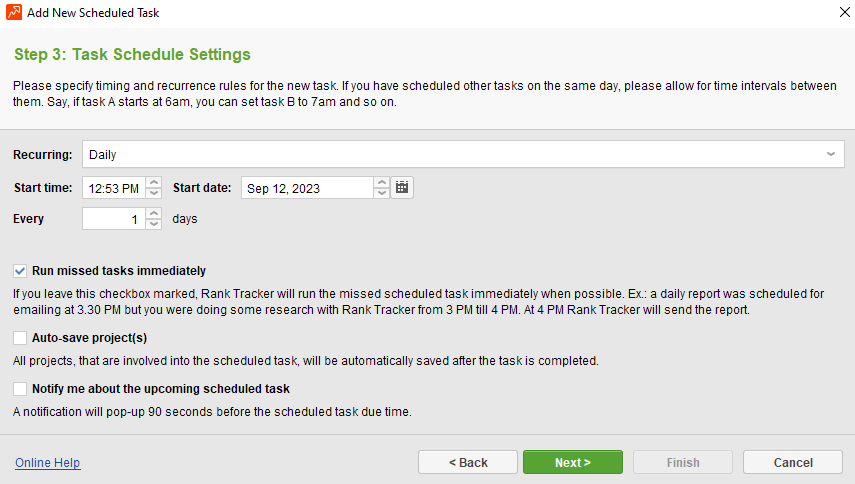
4) Set up task frequency (whether a task should be performed daily, weekly, monthly, etc.) and notification options. Click Next.
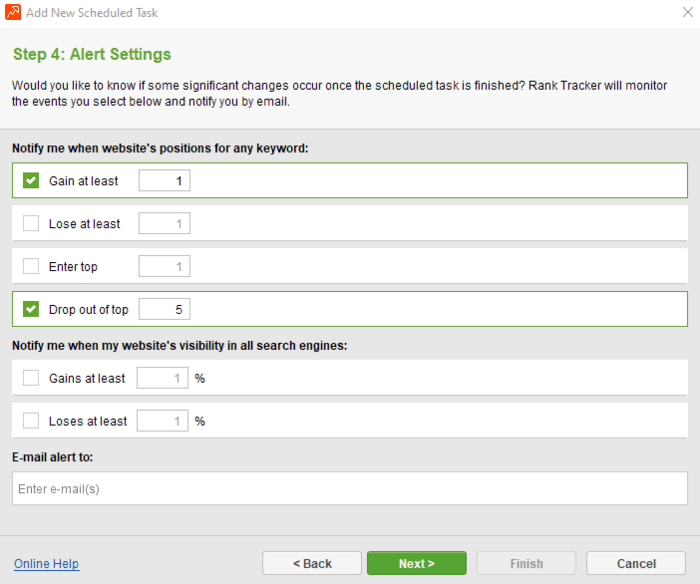
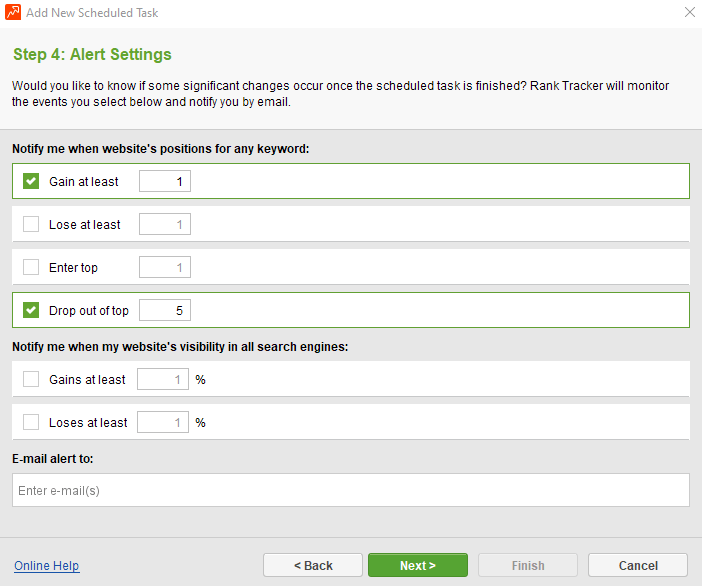
5) Set up the benchmarks for notifications (for example, when a keyword moves one, two, three, … n positions up or down) and provide an email(s) to send these notifications to. Click Next.
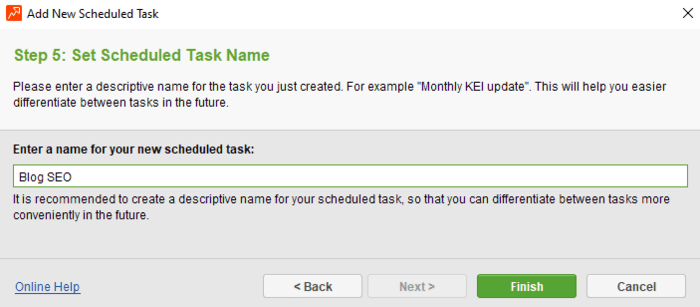
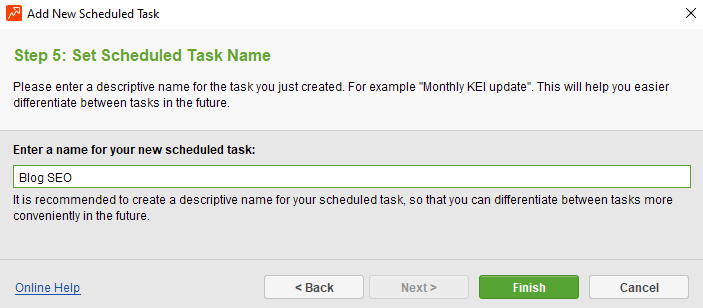
6) Name your new task, and press Finish. Here you are.
If you have a couple of different websites related to the same topic, one SERP may include snippets pointing to many of your domains. And, unlike keyword cannibalization, a situation like this does not harm your SEO. On the contrary, it works like a kind of SERP monopolization, as clicks and, consequently, profits end up in your pocket anyway.
Here’s an example from real life. There are three websites:
All of these sites, or at least two of them, may appear on the same SERP. In this case, all the clicks, traffic, and, eventually, popularity and money come to Gordon Ramsay, as he is the founder and owner of all these businesses.
The same happens when SERPs show your social media pages like Instagram or Facebook. Sometimes, these pages even outrank official websites.
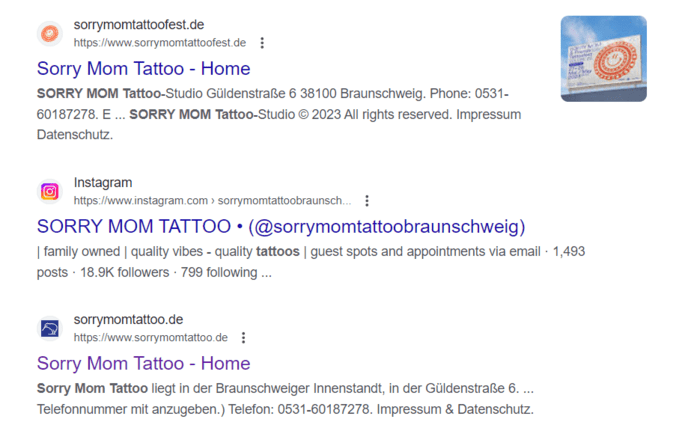
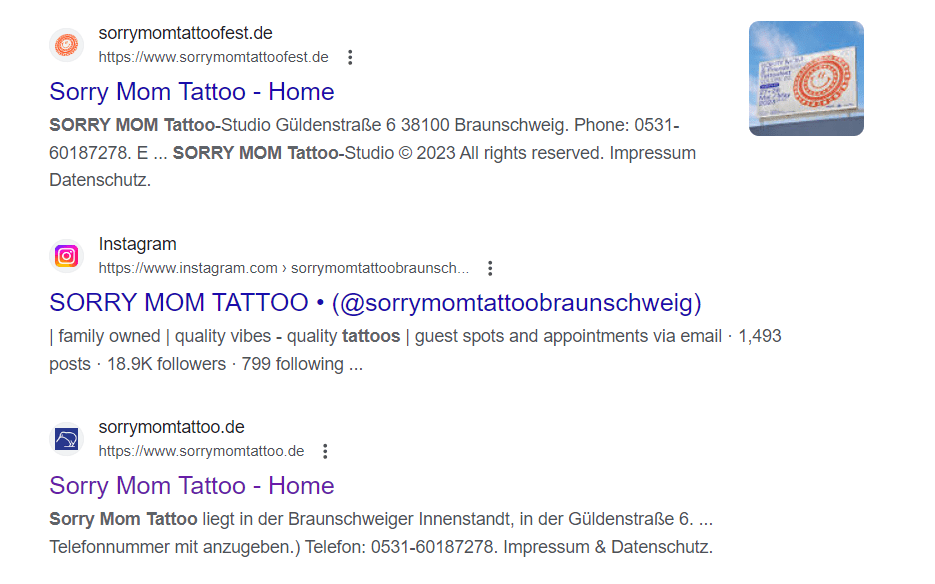
To give you a better understanding of how your business is performing in search, Rank Tracker lets you track alternative URLs in one project. What’s more, you can even track social pages. Doing so will help you see if your SERP positions are actually perfect, and if it is your second (or third, or n) site that has outranked the first one. Or if it is high time to take measures because you have been outperformed by a competitor.
To set up alternative URL tracking in Rank Tracker, launch the tool, pick your project or create a new one, and go to Preferences > Alternative URLs.
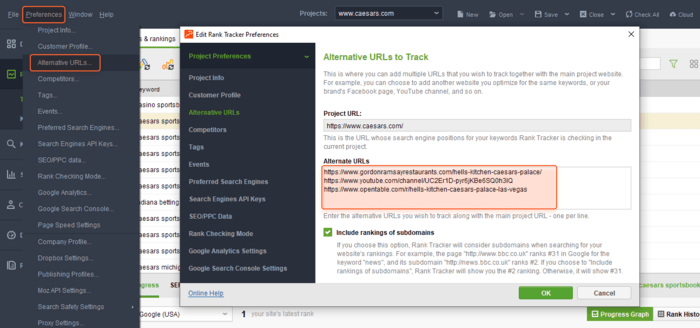
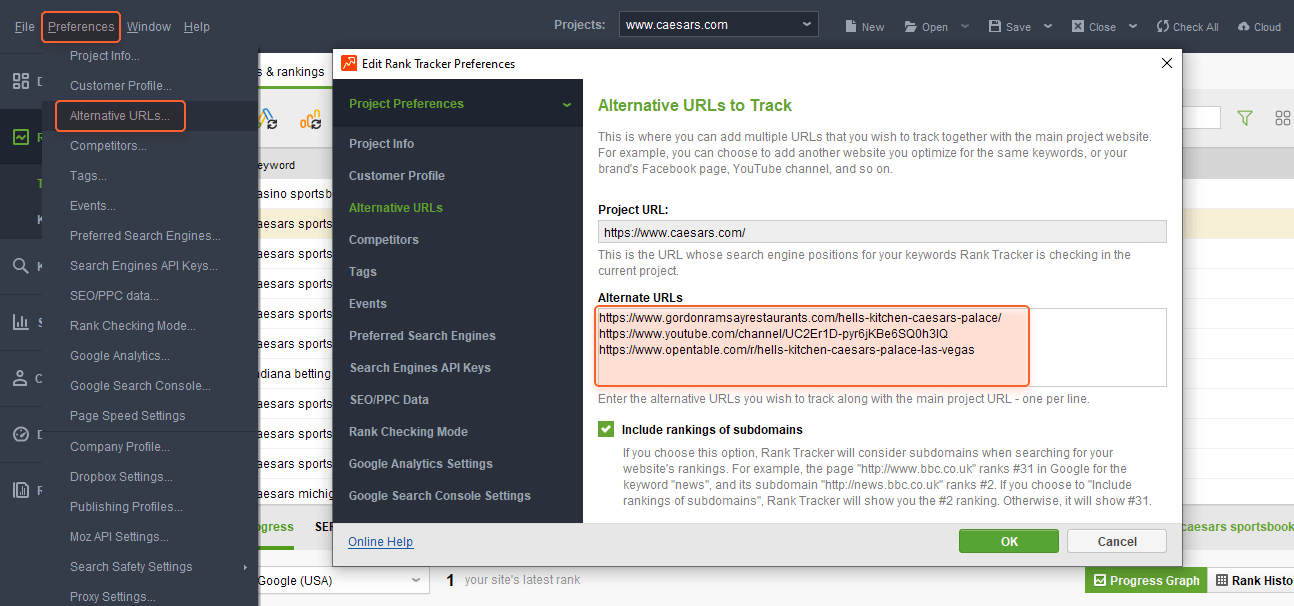
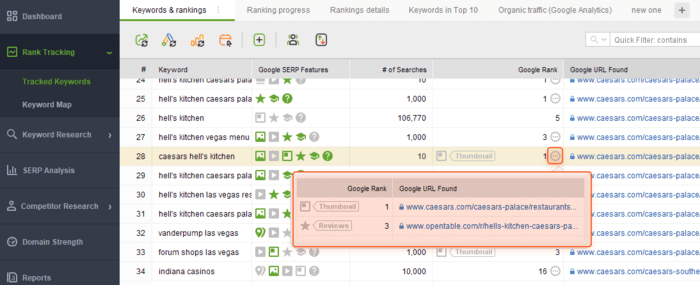
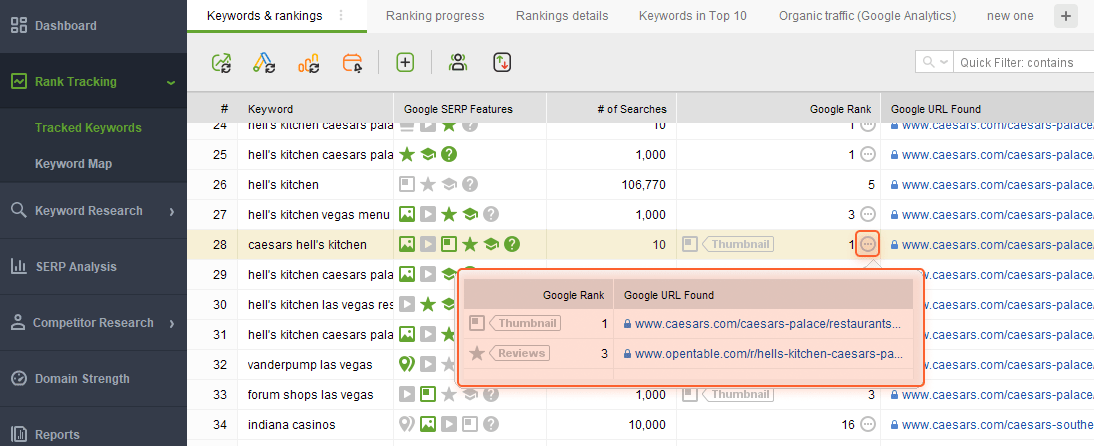
Enter the URLs you want to track in addition to your site (one per line). Hit OK. You’re all set. If any SERP appears to feature additional URLs that you have provided, the tool will notify you like this:
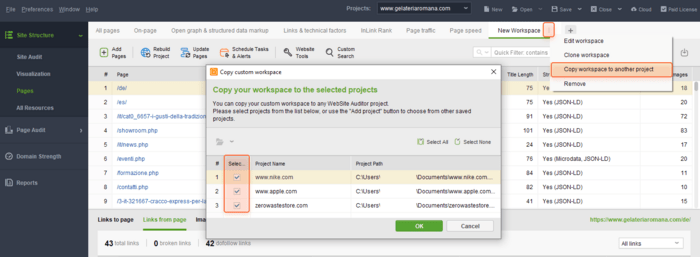
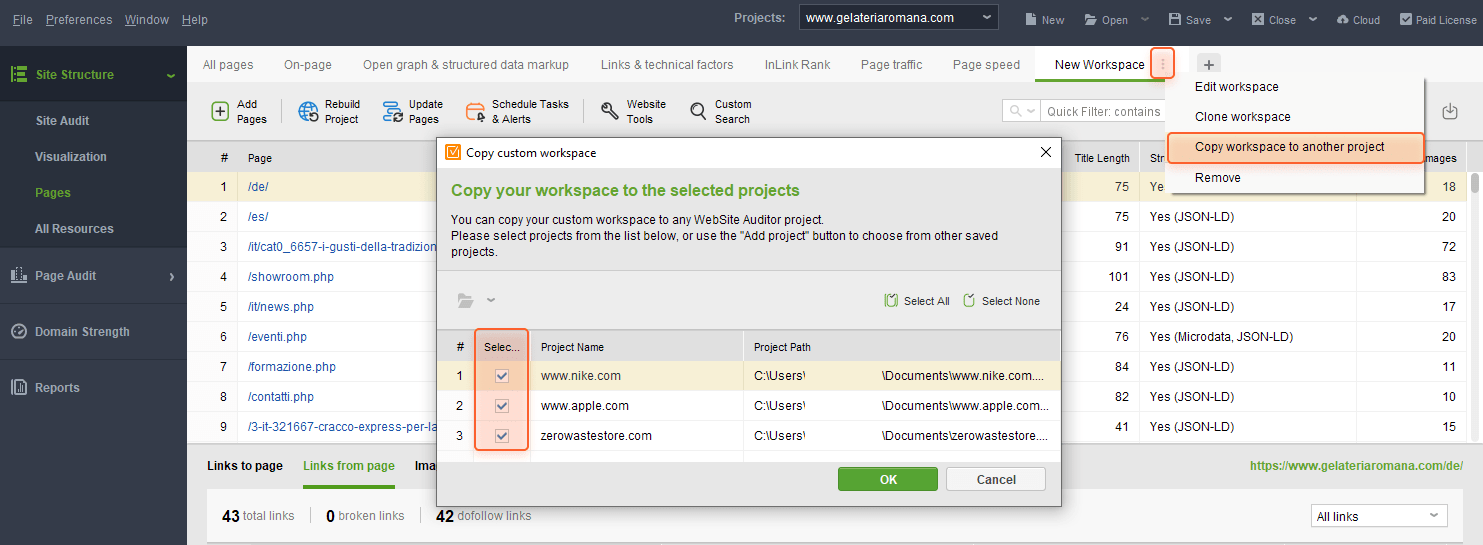
All SEO PowerSuite tools have super customizable workspaces. You can literally tailor any combination of metrics to your personal preferences and needs. And if a custom workspace appears to be really good and convenient, it would be nice to have it in any of your projects, right?
You can easily do this — SEO PowerSuite tools allow you to copy and share any custom workspace across all of the projects you have in the tool. Doing so will save you the trouble of manually reassembling the necessary workspace every time you create a new project.
In my example, I’ll be sharing workspaces in WebSite Auditor, but the flow is the same in every tool. Let’s start.
1) Launch the tool and go to the project with the custom workspace you’d like to copy.
2) Click the three vertical dots next to your custom workspace name and select Copy workspace to another project.
3) Then tick the projects you want to use your workspace in, and click OK.
Or, better say, very advanced crawling and rank checking. This SEO PowerSuite feature lets you emulate literally any type of crawler behavior. Many professional SEOs use this option to get a full understanding of site performance and search engine rankings.
SEO PowerSuite tools allow you to customize crawler and rank-checking settings any way you need, such as:
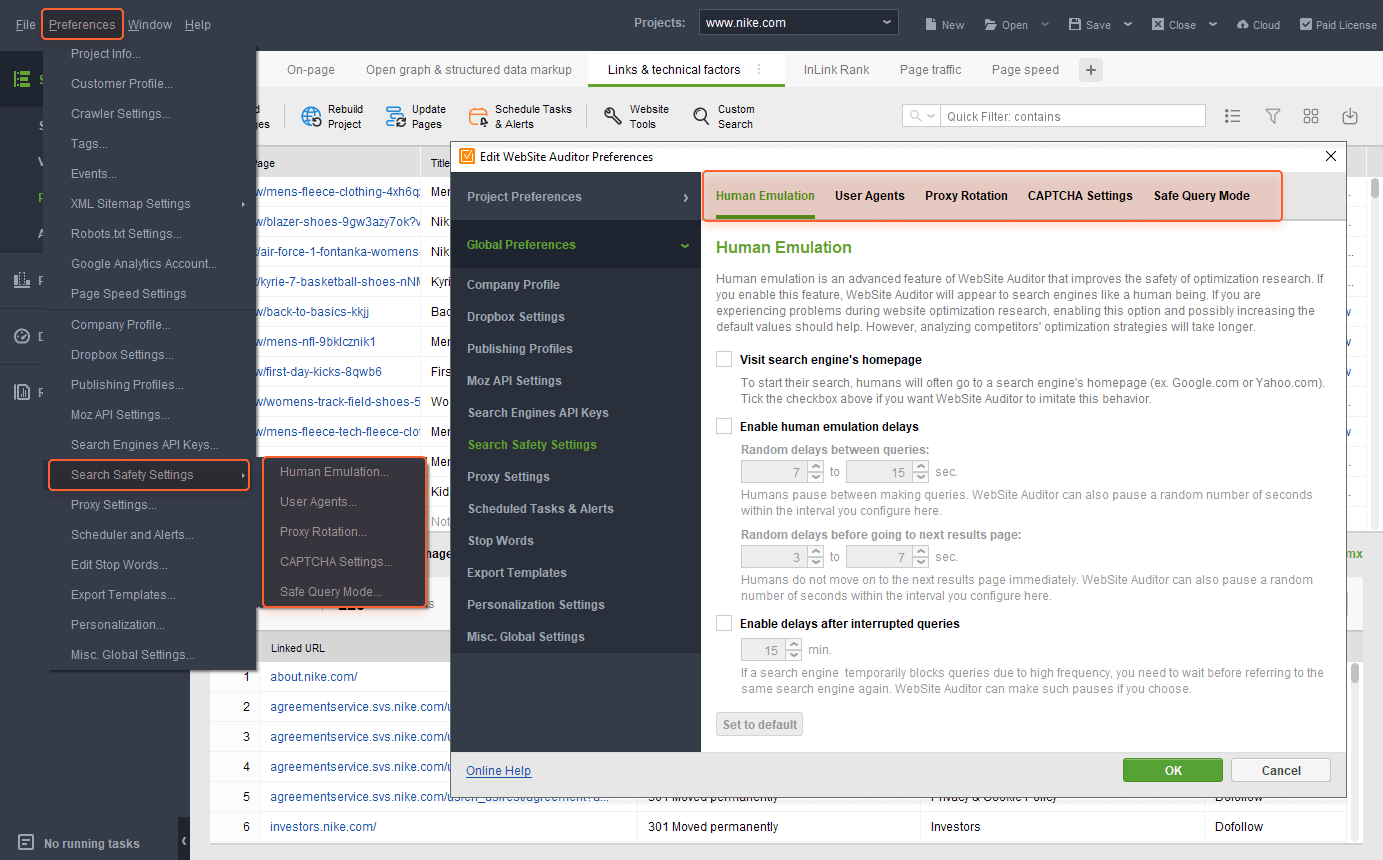
Setting up advanced crawling in SEO PowerSuite tools is generally executed through the Search Safety Settings section in the Preferences dropdown.
The first section, Human Emulation, lets you set up human-like behavior:

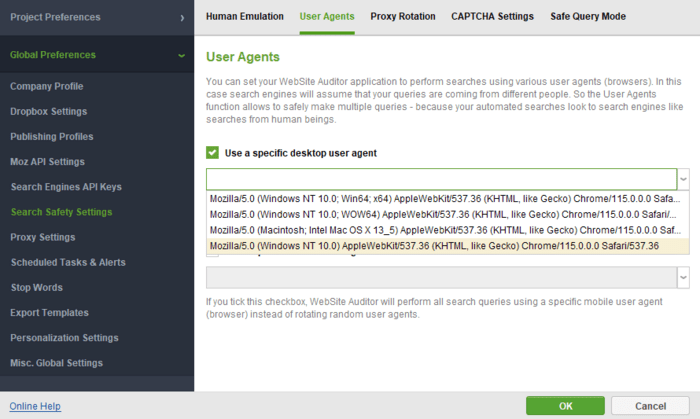
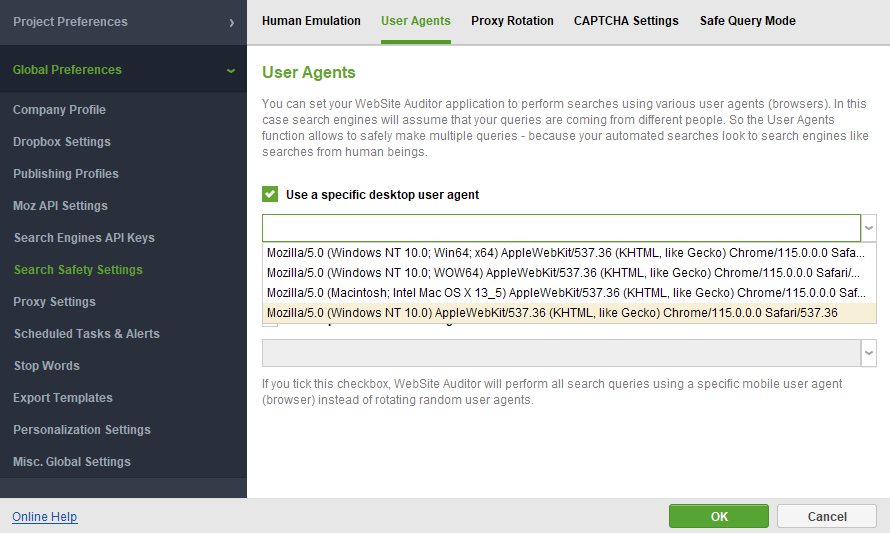
User Agents section lets you set up any specific desktop or mobile user agent:
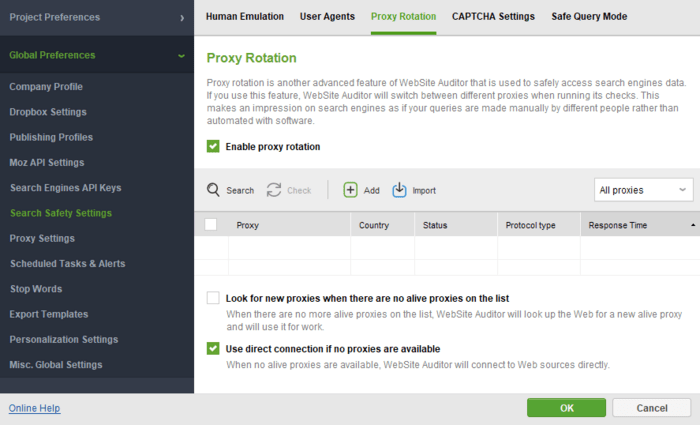
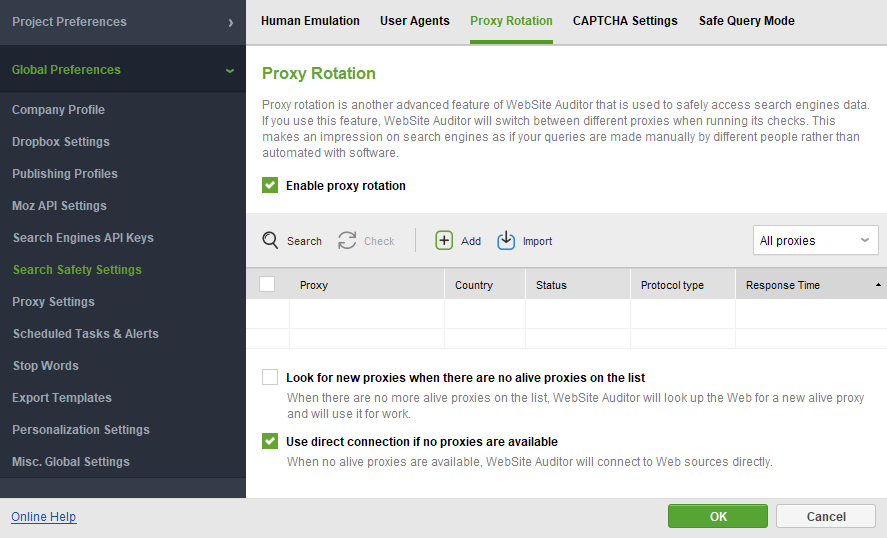
Proxy Rotation allows you to make the tool use different proxies when crawling, thus emulating many real people making queries from different locations:
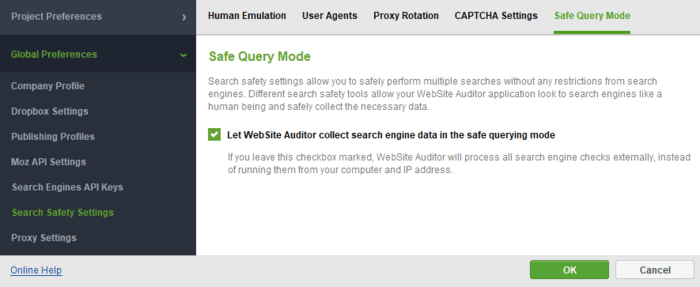
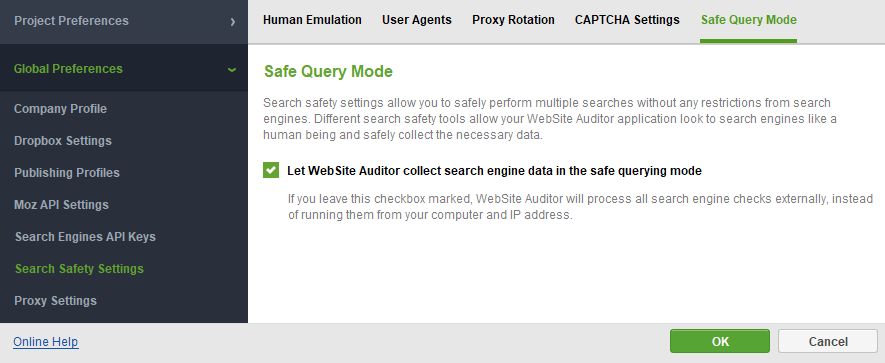
Safe Query Mode instructs the tool to access sites externally without compromising your IP:
In addition to these, let’s say, general advanced crawling settings, some SEO PowerSuite tools have additional, more niche-specific settings.
In WebSite Auditor, these advanced settings are located in Preferences > Crawler Settings:
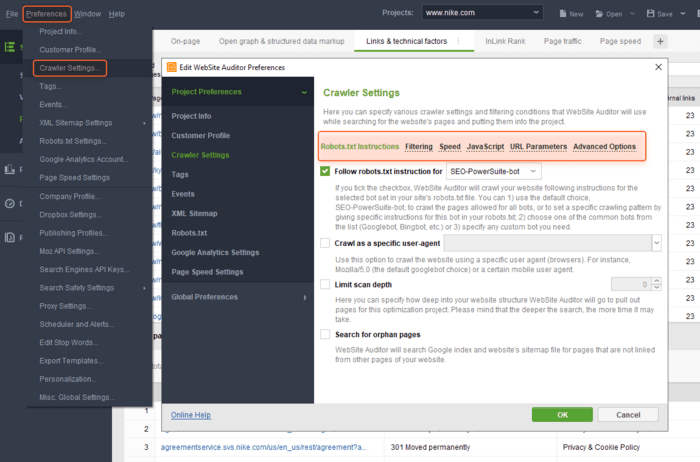
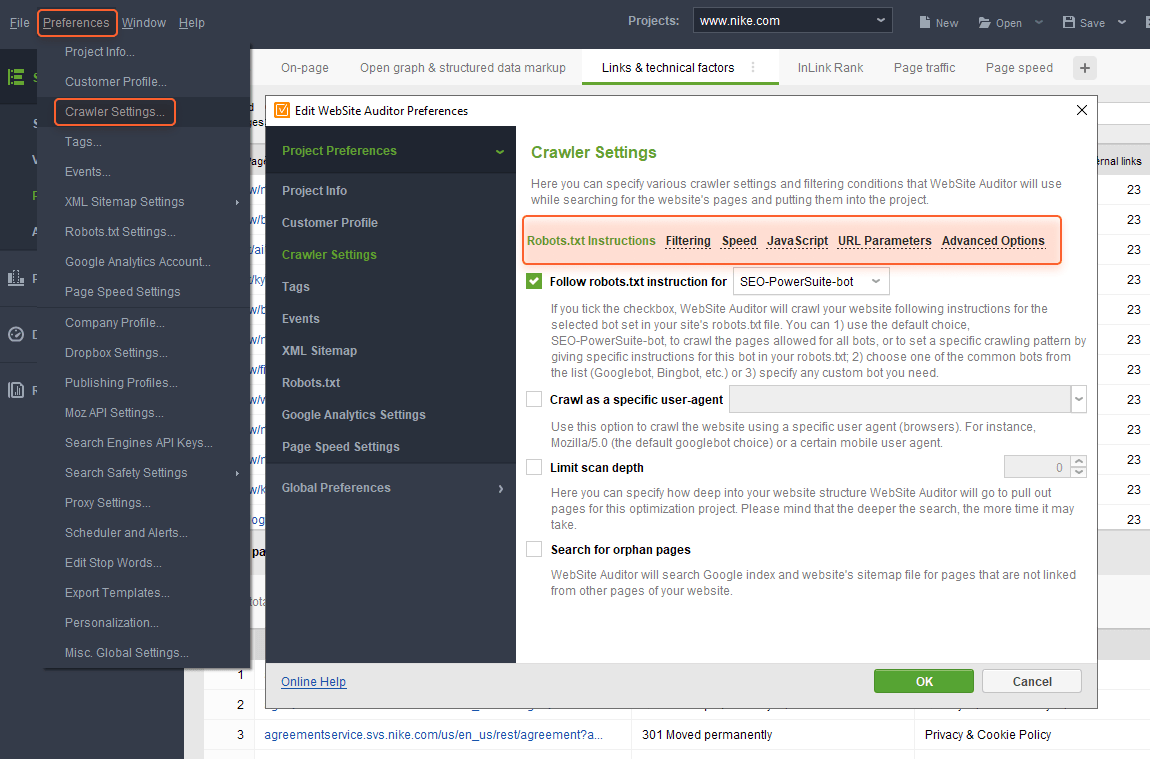
Here you can instruct the tool to:
Rank Tracker also has a set of tool-specific advanced settings. You can find them in Project Preferences > Rank Checking Mode.
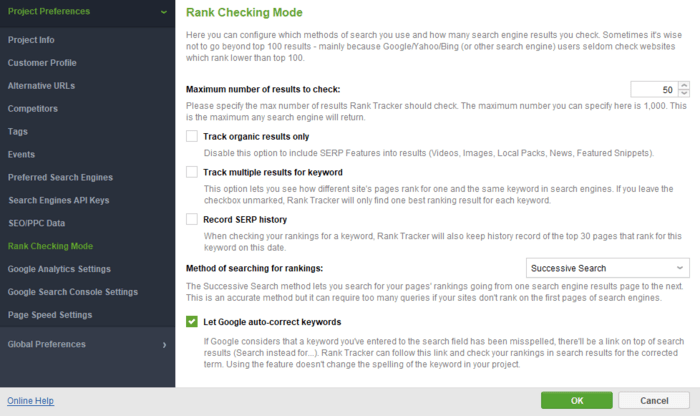
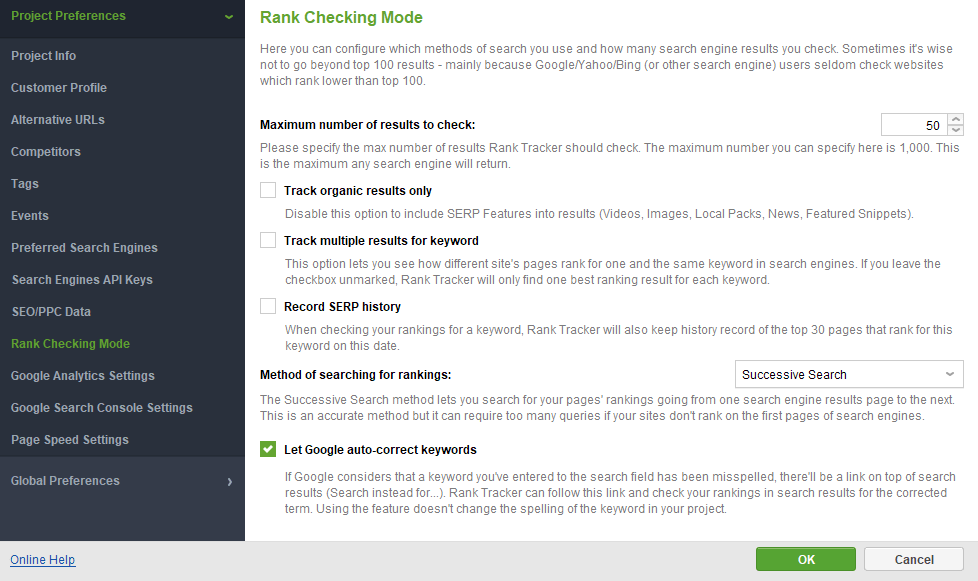
Here you can set up the following:
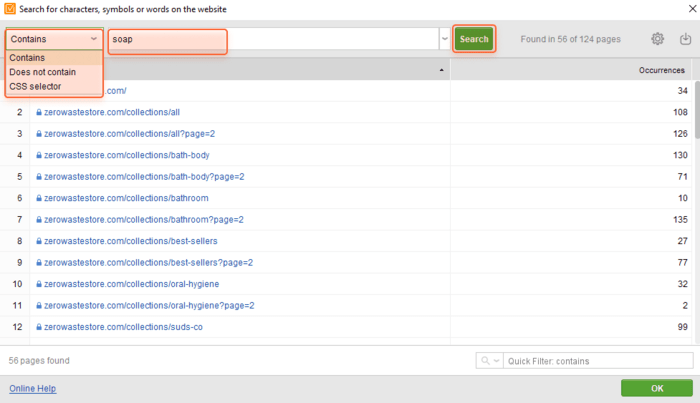
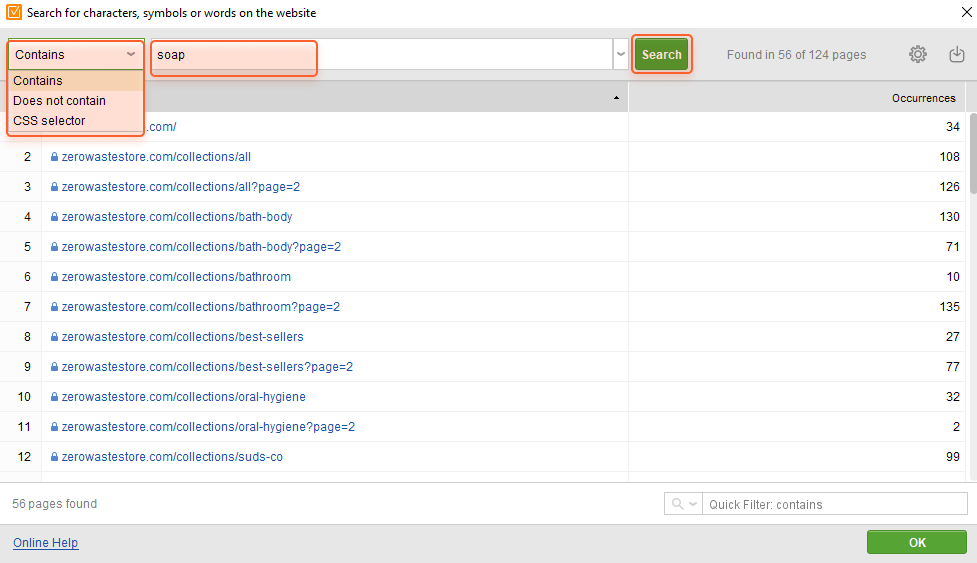
Custom Search is a little-known yet very useful feature of WebSite Auditor that lets you crawl web pages to find any specific piece of content, code, etc.
For example, you need to check how many of your pages have a specific keyword, and how often this very keyword is used on each of them. With the Custom Search option, you can do it within a couple of seconds.
Initiating a custom search is pretty easy. First, launch WebSite Auditor and open or create a project for the website you’re going to work with.
Then, go to the Site Structure > Pages module and click the Custom Search icon:
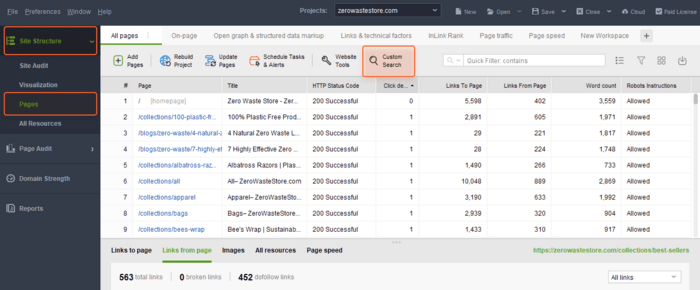
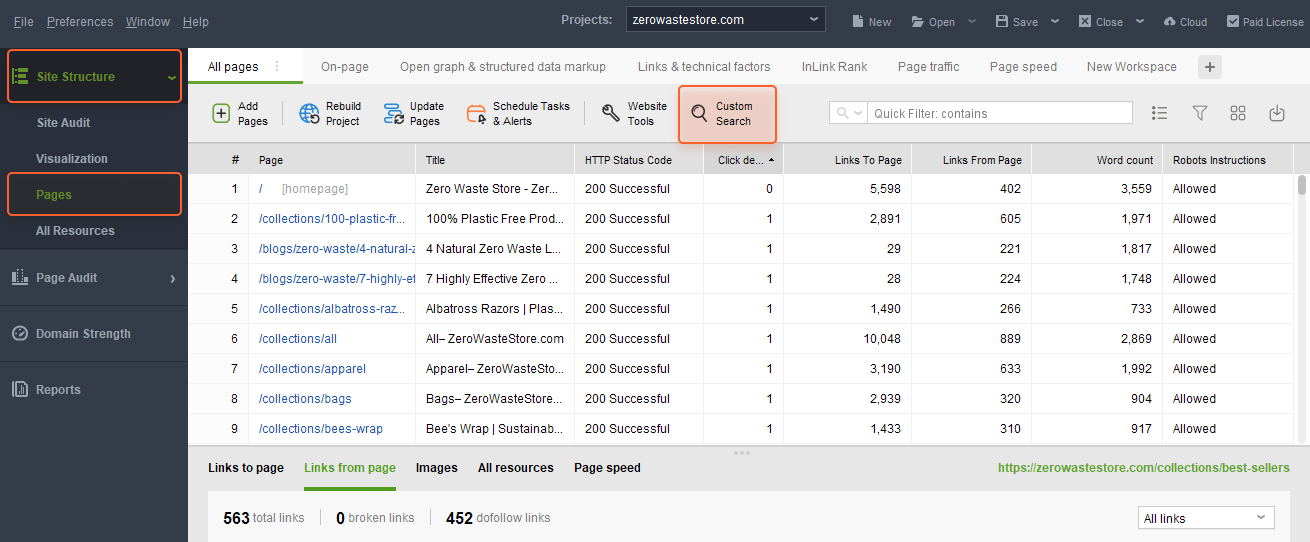
In the new window, choose the necessary option from the drop-down menu in the upper left corner, enter the value you’ll be looking for (or avoiding), and click Search. Voila!
SEO PowerSuite’s Rank Tracker lets you quickly find your competitors from scratch — all you need is to specify your domain. As a result, the tool will welcome you with the list of competitors and present key stats on their traffic, the number of your intersecting keywords, and the number of competitors’ unique keywords.
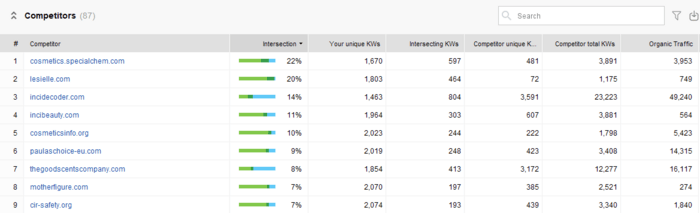
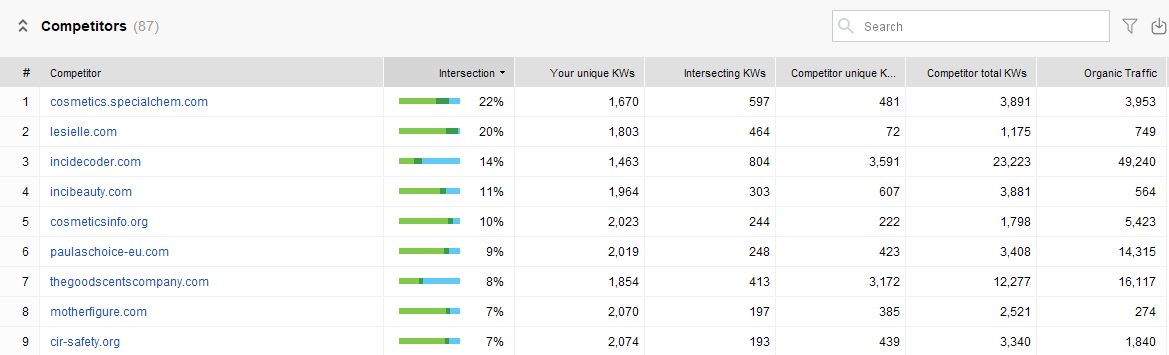
Sure thing, the number of competitors’ unique keywords is not enough to proceed with new content. You need to see these keywords themselves and analyze them. As these unique keywords are your opportunities to get into more SERPs and receive more traffic and profits.
So, here you are. Rank Tracker’s smooth navigation lets you jump to the list of competitors’ unique keywords in a single click.
Whenever you conduct competitor research in Rank Tracker, you work with the corresponding Competitor Research module. In this case, you’ll first need to find your domain competitors if you haven’t done it yet.
So, launch the tool, open or create your project, and go to Competitor Research > Domain Competitors.
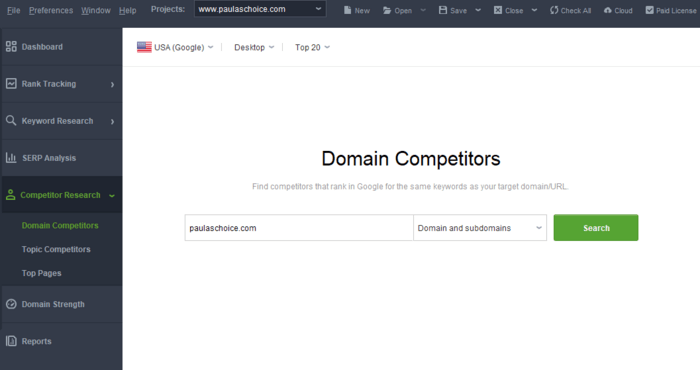
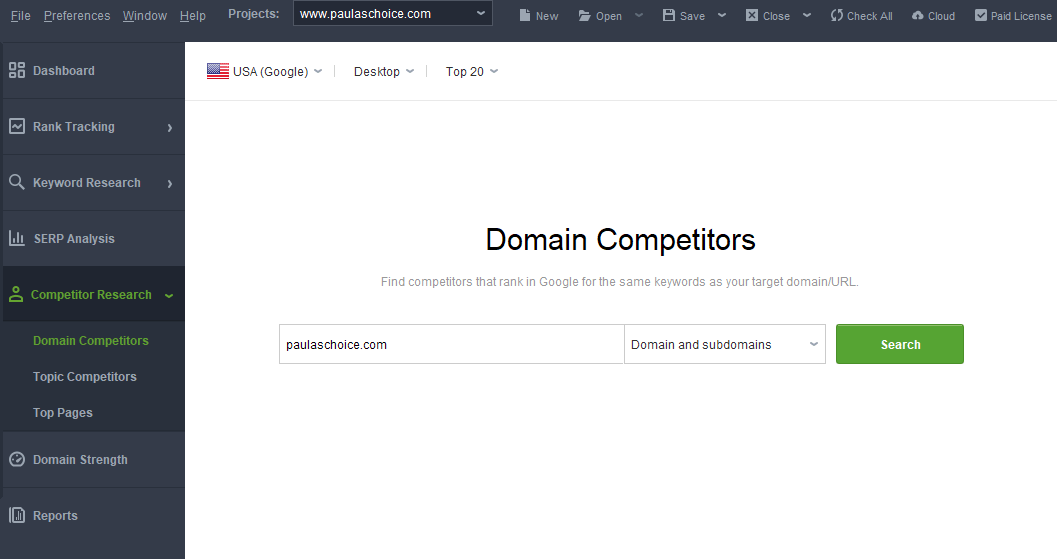
Specify the region and click Search. Rank Tracker will welcome you with a list of competitors and a set of keyword data. To see the list of competitor’s unique keywords, find the Competitor unique KWs column and click the magnifying glass icon:
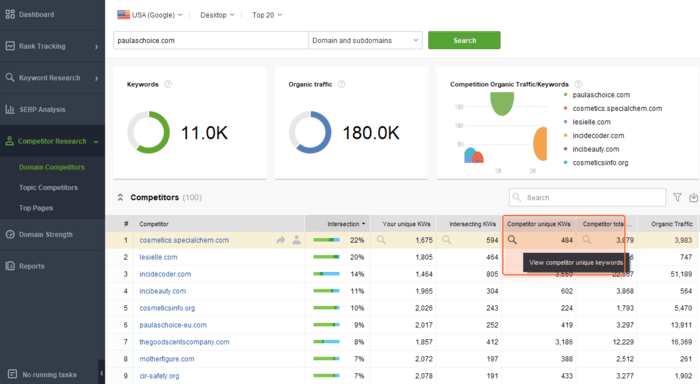
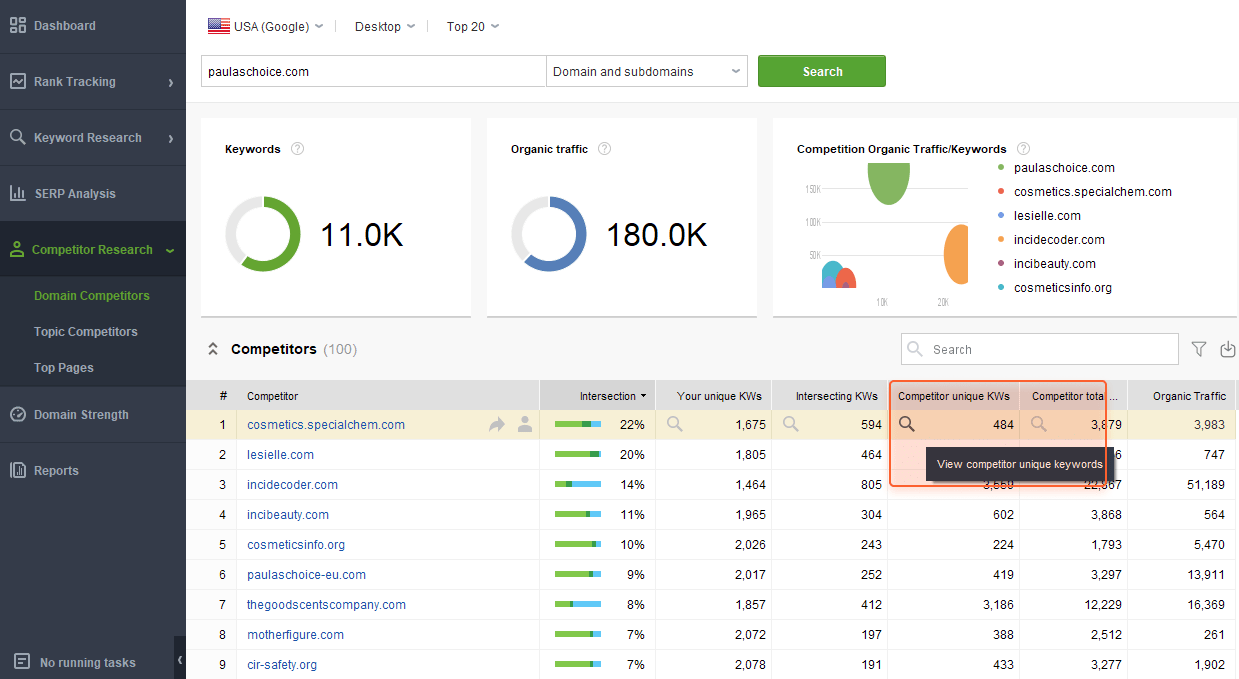
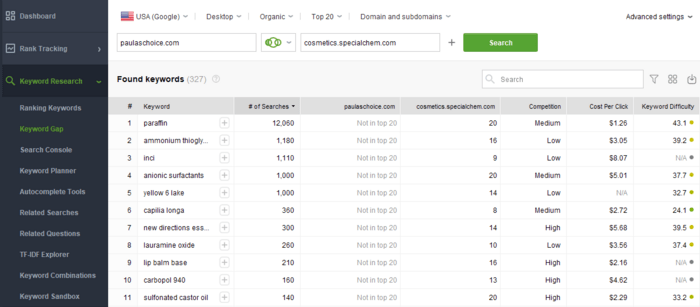
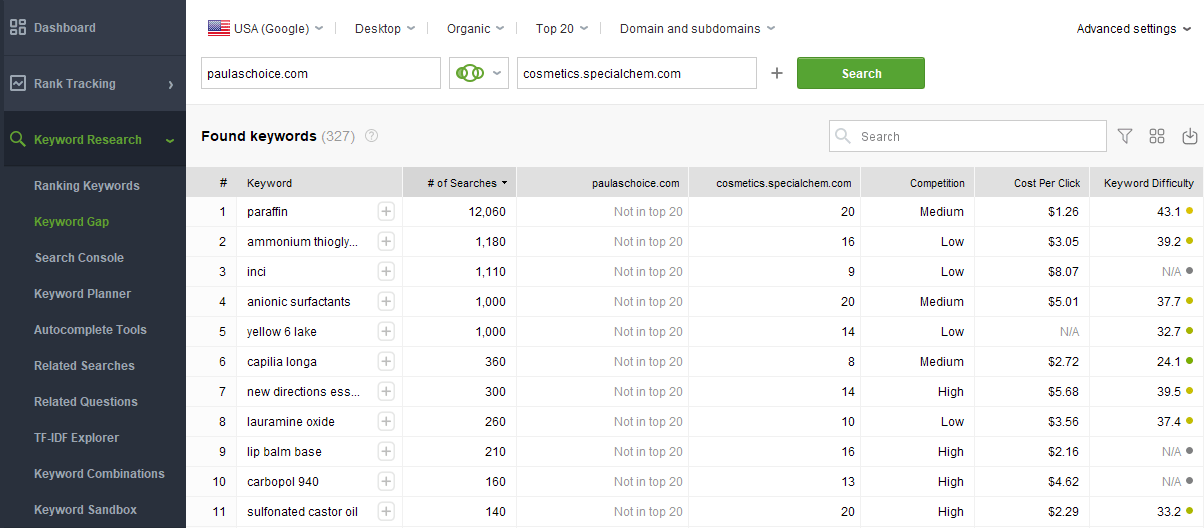
The tool will instantly drive you to the Keyword Research > Keyword Gap module and show the list of a competitor’s keywords and their key metrics. Here, you can easily analyze and filter them to choose the best opportunities for your website.
Each content optimization tip you get in WebSite Auditor is based on the content of your top SERP competitors for a given keyword.
By default, the tool selects the first 10 URLs from the SERP and forms optimization tips based on the content of these pages.
But the truth is that you can always choose competitors depending on your preferences. WebSite Auditor collects 20 SERP competitors, so you can change the selection if you want. As a result, you will get new optimization advice based on the competitors you’ve chosen.
Note that you should choose from 5 to 10 competitors, otherwise, the tool will not get enough data for optimization advice.
To change the selection of competitors for optimization advice in WebSite Auditor, you need to assemble a project for your site.
1) Go to Page Audit > Content Audit and select a page and keywords you’re going to optimize for.
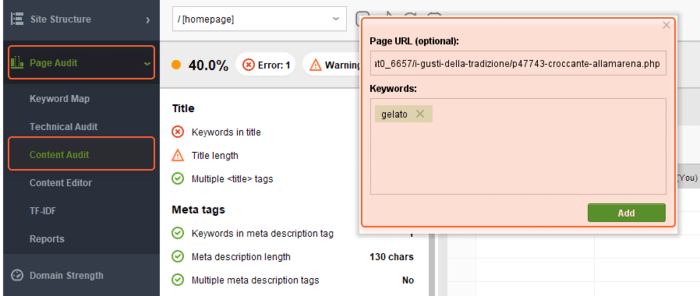
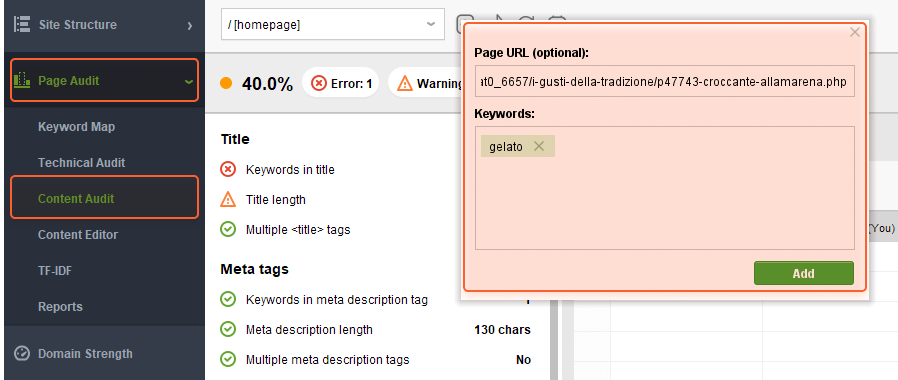
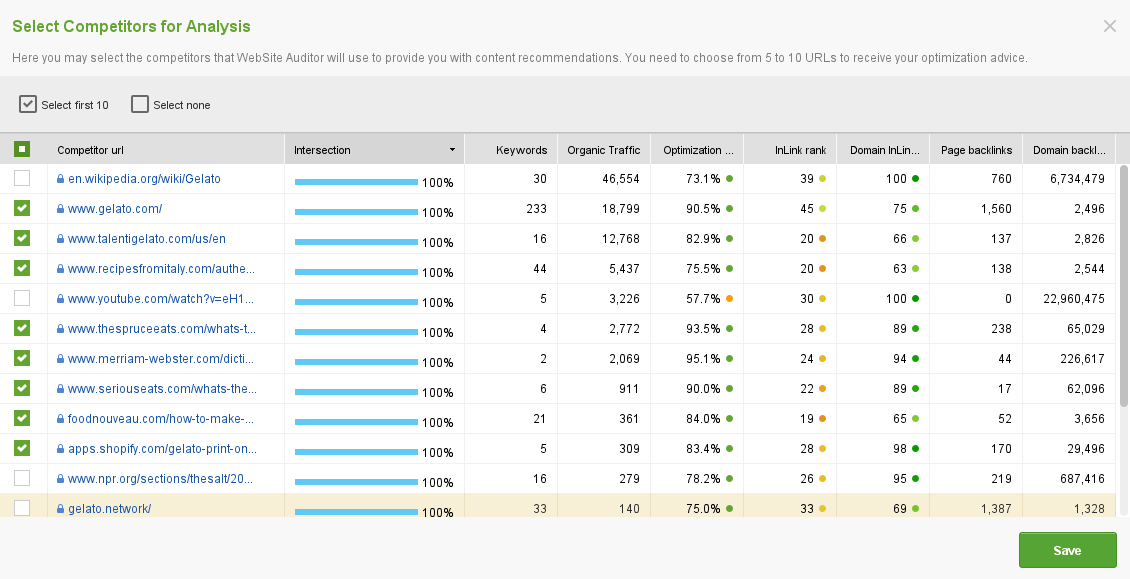
2) To take a look at the full list of discovered competitors and change the selected 10, click the burger menu in the upper right corner and choose Manage competitors:
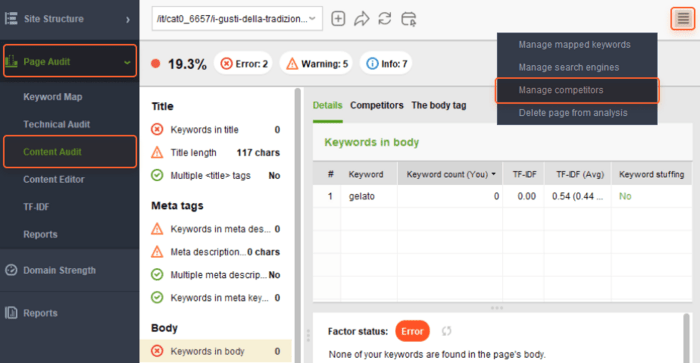
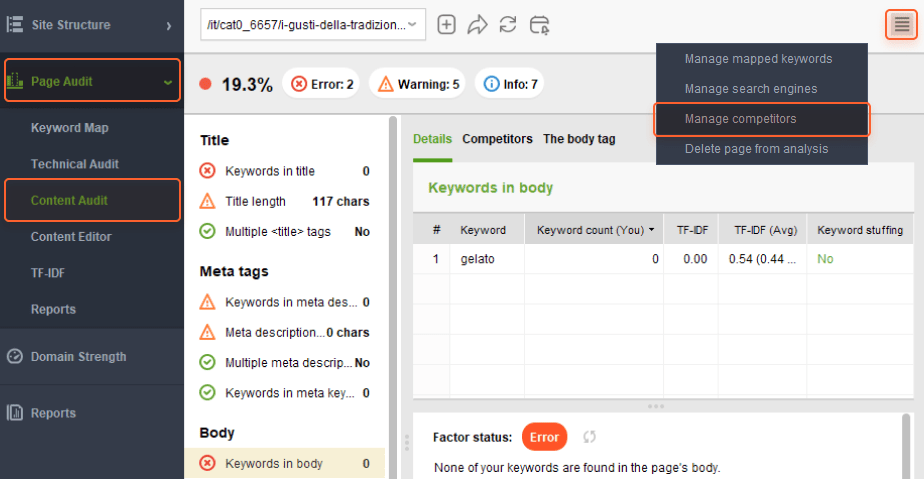
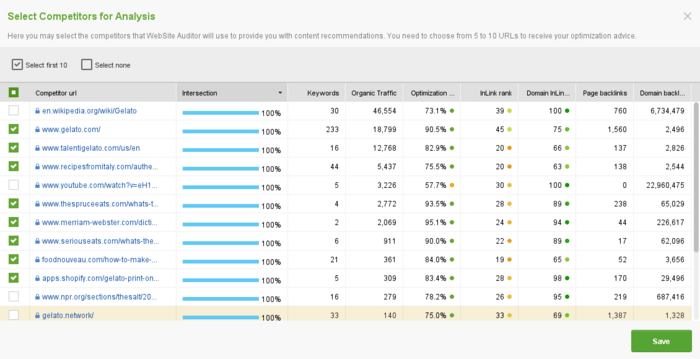
Here you can see the top 20 SERP competitors for the keyword you’ve specified and check their key SEO metrics.
3) Depending on what you see, you are free to untick the automatically selected competitors and tick those you need. Once done, click Save.
5) Update page factors to see newly-formed optimization advice.
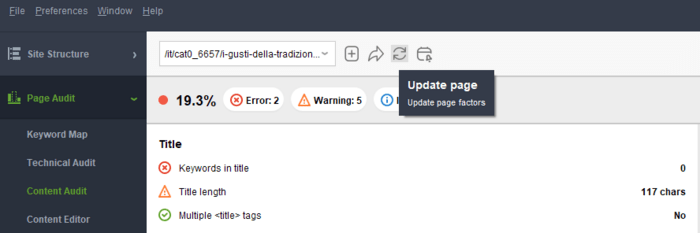
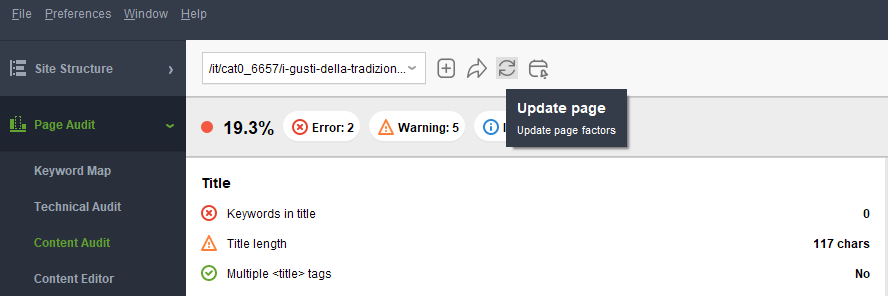
Enjoy new content ideas and optimization tips.
Bulk project creation is a major time-saver in SEO SpyGlass for SEO agencies or freelance SEOs that have a bunch of clients’ websites.
With this feature, you can assemble multiple projects at once. Just specify all the domains you need to check, and the tool will do the rest.
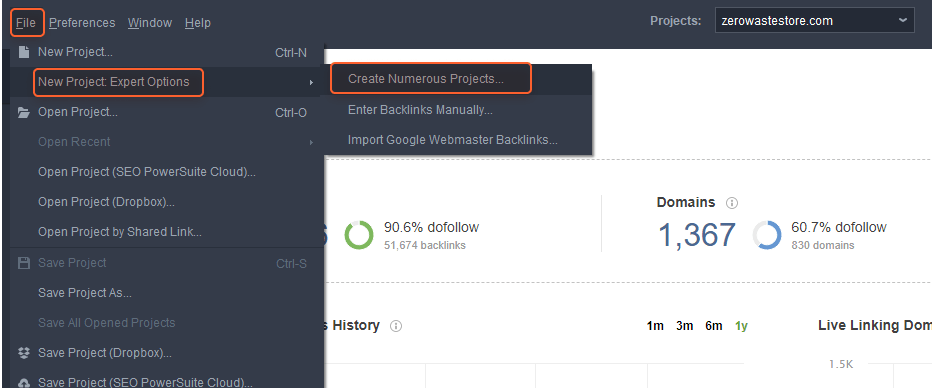
To set up bulk project creation in SEO SpyGlass, launch the tool and go to File > New Project Expert Options > Create Numerous Projects:
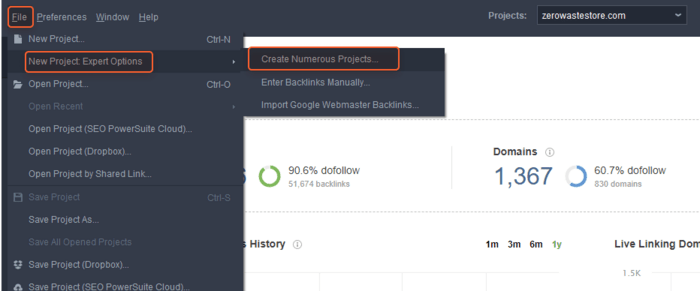
Enter your domains (one per line) and click Finish.
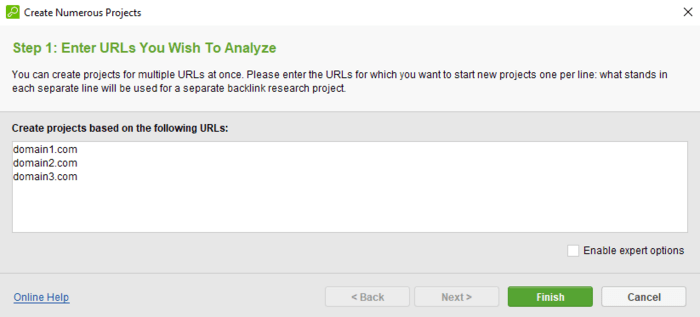
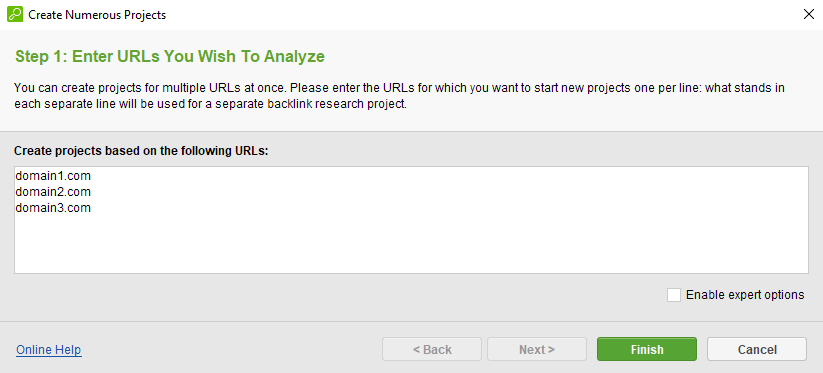
Here you are. While the tool assembles new projects for the specified domains, you can proceed with other SEO activities you have to do or just enjoy your coffee.
Ever thought of buying a used domain and moving your site there? If so, you should first carefully explore the past of the domain you’re going to buy and decide if it’s worth your effort. To avoid future problems, you definitely need to know if the domain has ever got any penalties from Google, has high domain risk, or even had its pages deindexed.
SEO PowerSuite tools are here to help you spot any reputation risks and make a wise decision if you should buy some domain or consider another one.
To carefully check a domain for any possible reputation issues, you will need WebSite Auditor and SEO SpyGlass.
1) Let’s start with WebSite Auditor. Launch the tool and create a project for the domain you’re going to buy. Go to Domain Strength and look at the Indexing in search engines section.
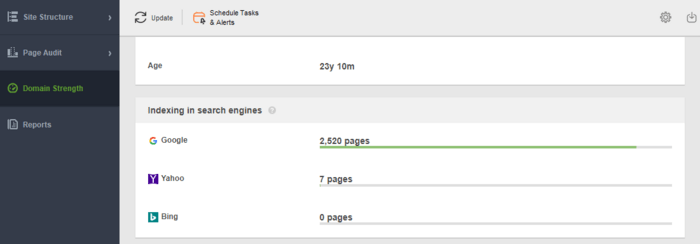
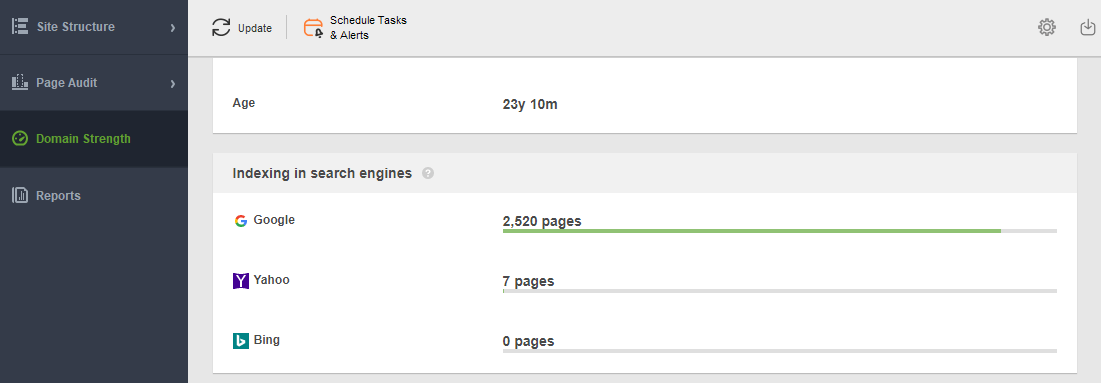
If the number of pages indexed by Google is much less than the number of pages discovered by the tool, chances are that some pages have been deindexed. Which may mean that the domain was penalized by Google.
2) Now let’s move to SEO SpyGlass to check the penalty risk for the domain in question. Here, you need to open or create any other project different from the site you’re going to examine. Then, go to Backlink Profile > Backlinks and add the domain you’re evaluating.
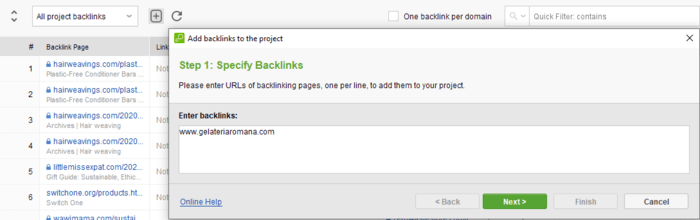
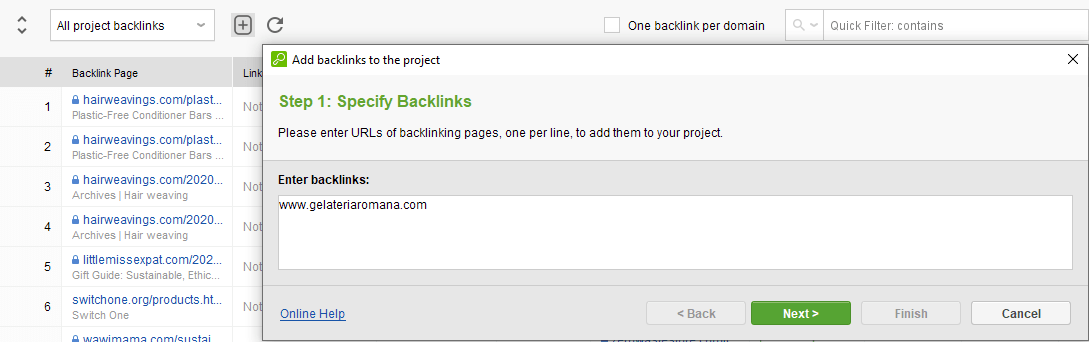
Next, search for the domain you’ve just added and check the Penalty Risk column:


If Penalty Risk is low (in the green zone), then it is safe to buy this domain and work with it.
A strong backlink profile is one of the keys to a successful SEO strategy. So, it is crucial to have many high-quality backlinks that are passing link value to your pages. But it is even more crucial that Google sees all your backlinks and successfully takes them into account when ranking your pages.
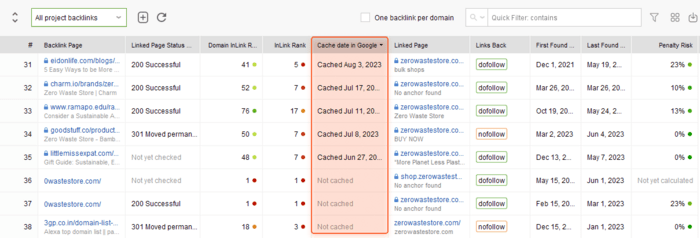
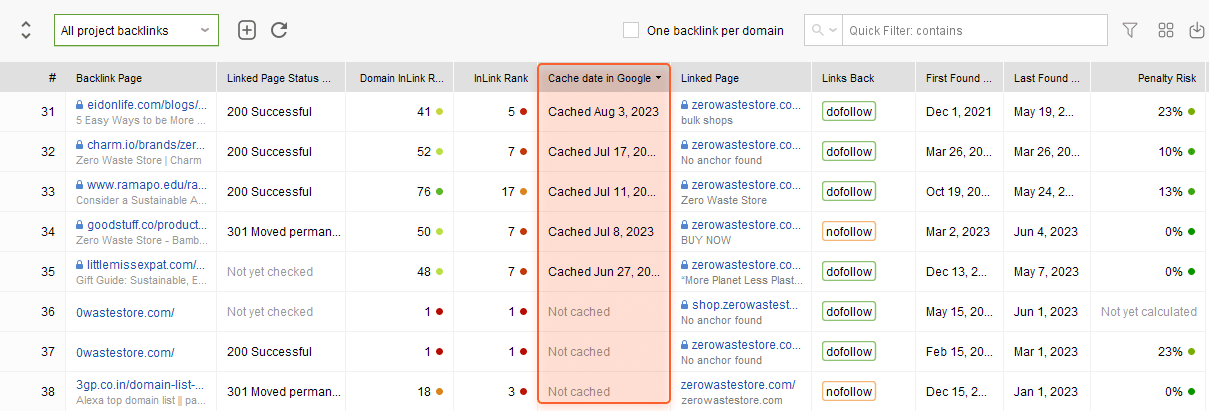
To help you make sure that Google sees every backlink, SEO SpyGlass has a unique feature. You can check if a backlink is present in Google Cache and see the latest cache date.
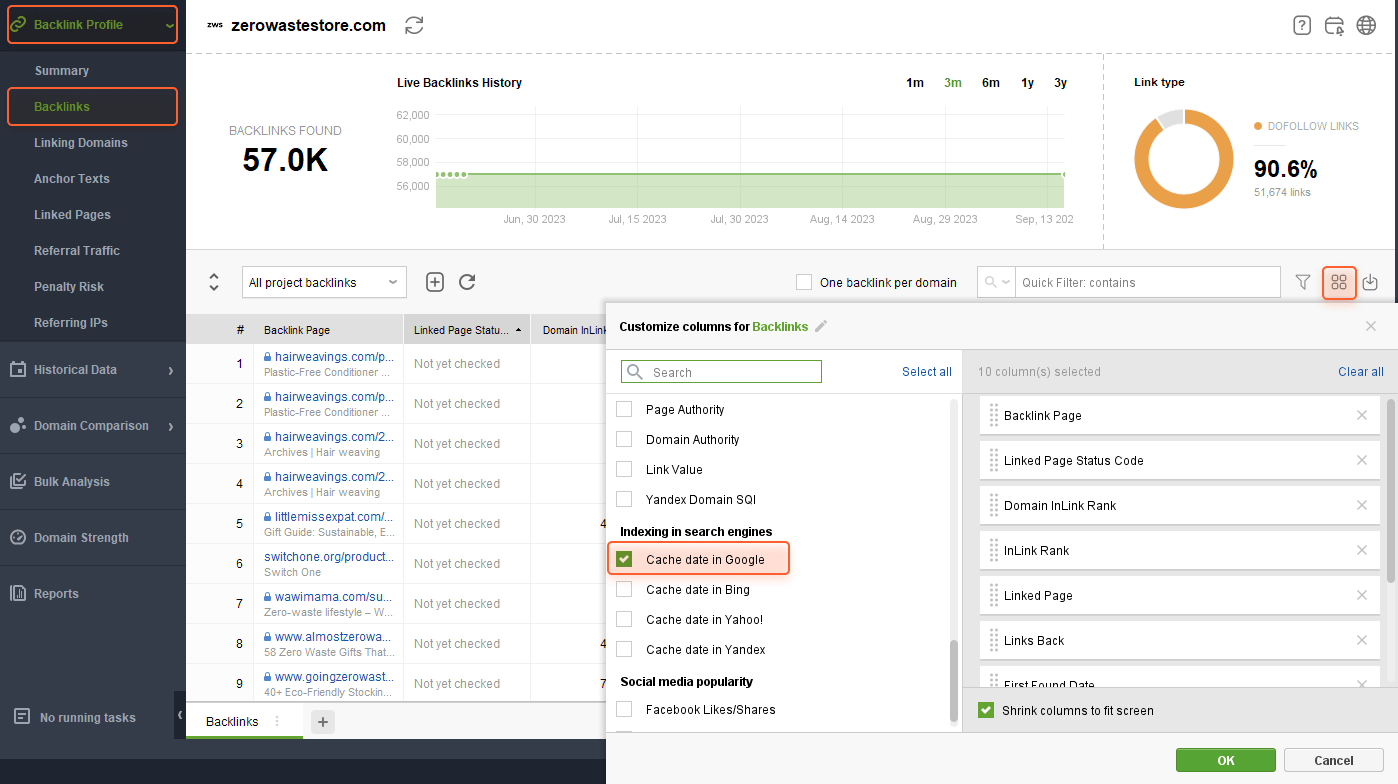
To check if the backlink is present in Google Cache, launch SEO SpyGlass and open or create a project for your website. Then, go to Backlink Profile > Backlinks. Enable the Cache Date in Google column:
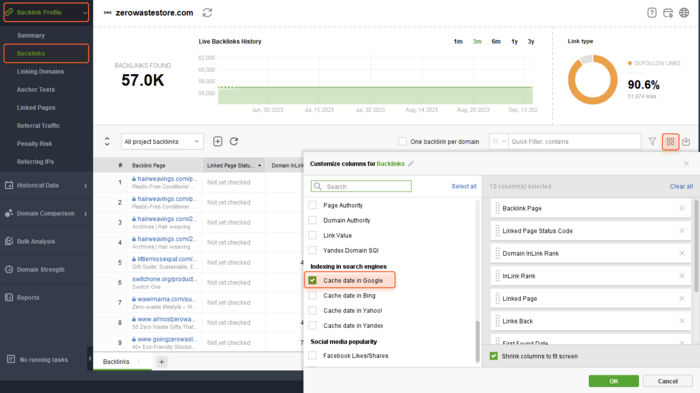
Refresh the data in the Cache Date in Google column, and here you are:
Advanced keyword filtering is a feature of Rank Tracker that allows you to filter your keyword lists by any parameter you need to further remove certain keywords, move them to other lists, tag in bulk, etc.
For example, you have a list of 1,000 keywords. Some of them include a particular word or phrase, and you need to remove them. With advanced filters, you can do it within a couple of clicks. Plus, these advanced filters are super-customizable. You can combine different conditions, and even apply regex, which makes the filters’ functionality literally unlimited.
To filter out unnecessary (or, vice versa, necessary) keywords with advanced filters, launch Rank Tracker and open your project.
Your next step may vary depending on what keywords you’re going to work with.
If you need to filter the keywords you’re already monitoring, go to Rank Tracking > Tracked Keywords.
In case you’re going to sort keywords you’ve found during your keyword research and only consider tracking them, then go to Keyword Research > Keyword Sandbox.
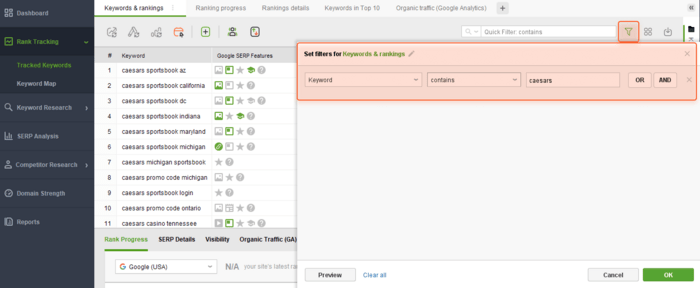
No matter what module you’re working with, find and click the filter icon in the upper right of the workspace. Then, select the metric you’re going to use in your filters, specify the condition, and define the value.
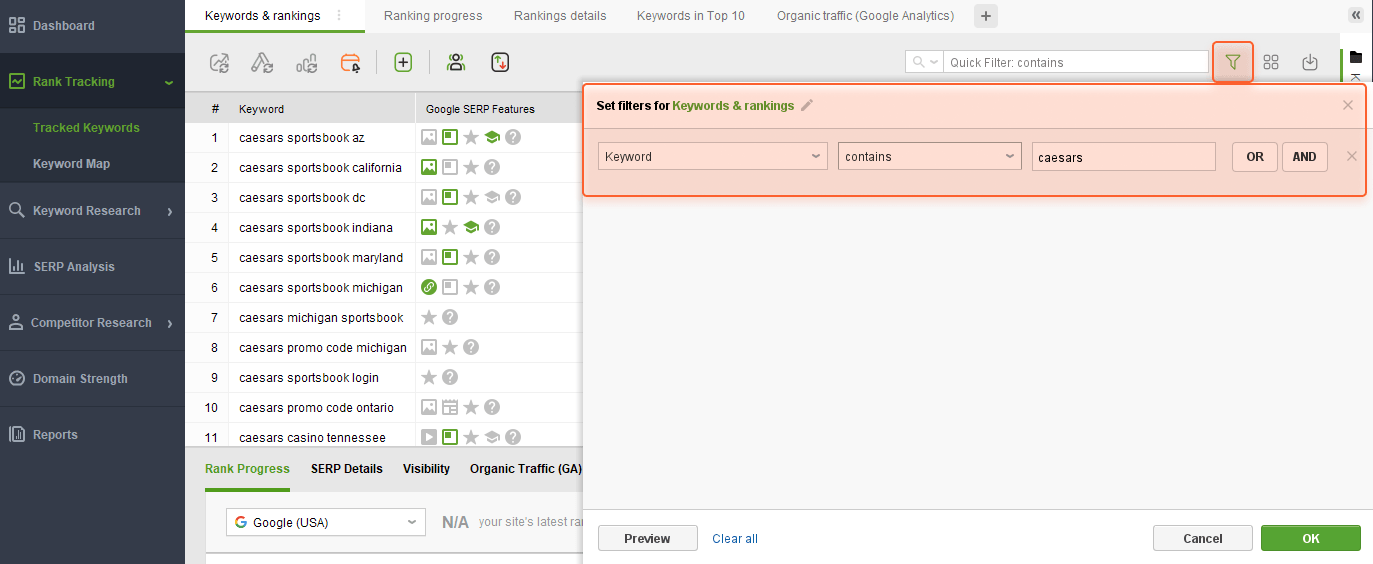
You can adjust and combine filters by any parameter, be that number of searches, Keyword Difficulty, or Google rank.
In my case, I am filtering keywords that contain a specific word, so I choose Keyword > contains > “word”. As I don’t need any other filtering option, I click OK, and here it is. Now I can easily delete, tag, group, and do whatever I need with the keyword list matching the parameters I’ve set.
This is one of the most popular questions our users ask:
What is the best way to set up a project for a website with multiple languages? Do I need to create different projects per language, or can I use only one project and distinguish languages using groups, tags, or anything else?
Ex #1 (subdirectories):
- https://example.com/en -> English
- https://example.com/de -> German
Ex #2 (subdomains):
- https://www.example.com/ -> English
- https://de.example.com/ -> German
Ex #3 (separate domains):
- https://example.com/ -> English
- https://example.de/ -> German
Sure thing, it is not very convenient to assemble different projects for so many language versions of one website. Luckily, SEO PowerSuite toolkit lets you avoid doing the extra job: you can easily monitor all language versions of your site within a single project.
Keep in mind that the option is only available for subdomains and subdirectories (cases #1 and #2). In case #3, where different language versions are technically different domains, you will have to create different projects.
Here’s what our customer support has to say on the matter:
For most of the tools, you can check the data in different languages within one project. If your domain has several language versions that are arranged either as subdomains or subdirectories - this is not a problem.
Rank Tracker will be able to track positions and pick up your ranking URLs for any domain version.
Website Auditor has the ability to scan subdomains as well.
SEO SpyGlass allows collecting backlinks for domains & subdomains together, specifying the URL a backlink leads to.
Having one project for all language versions (scenario #1 and #2 from the example above) and arranging the data by groups and tags would allow you to keep all of the results in one place.
Only with the #3 scenario, you would need to have a separate project for each language version, as these are considered different domains.
If you need to take a closer look at a particular language version (isolate the results), you can create a separate project as well (there is no limitation on the number of projects you can create).
When it comes to tracking or/and scanning several language versions arranged as subdirectories under a single domain, you actually don’t need to bother with any settings at all. SEO PowerSuite tools scan subdirectories by default.
Setting up subdomain tracking in SEO PowerSuite software is a bit different from tool to tool.
So, if you need to allow subdomain tracking in Rank Tracker, go to Preferences > Alternative URLs, and tick the Include rankings of subdomains option:
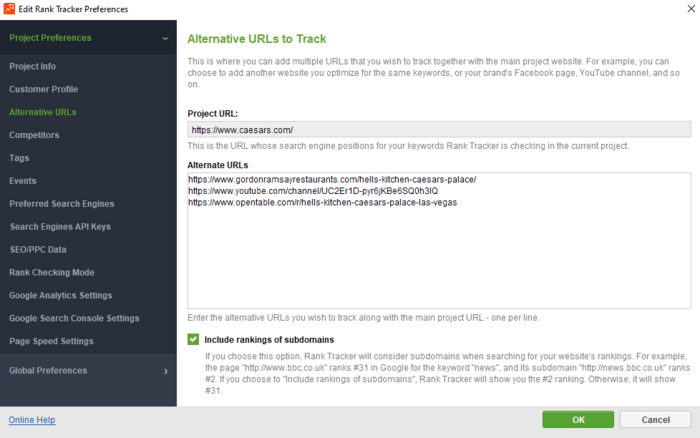
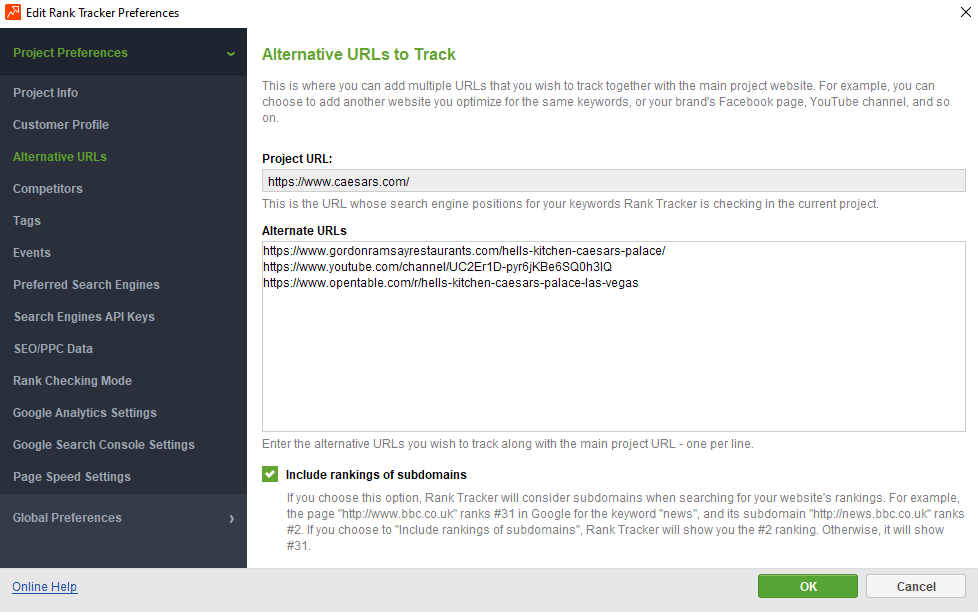
Click OK, and you’re all set.
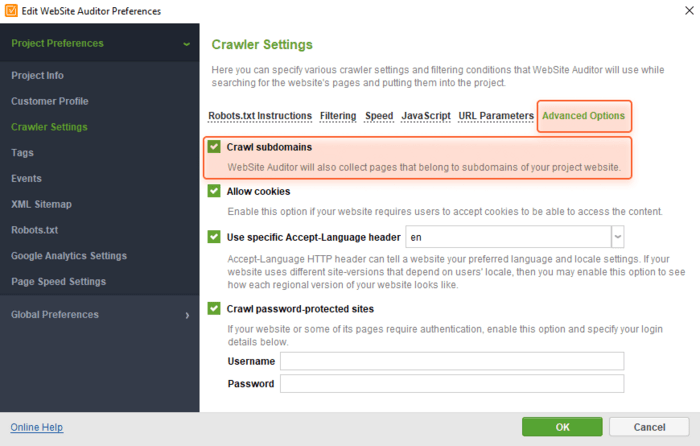
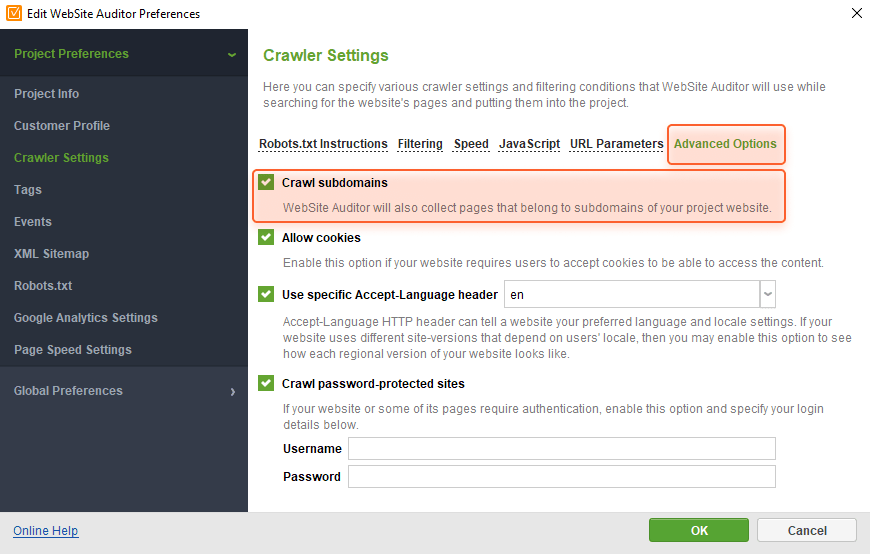
In WebSite Auditor, subdomain scanning is enabled through Preferences > Crawler Settings > Advanced Options. All you need is to tick the Crawl subdomains option and click OK to save your settings.
This is a common case for new users who collected their keyword data with other tools (or even manually) and want to bring that data to their projects in Rank Tracker. The thing is that they don’t need to import keywords themselves, they need data — tags, groups, etc., collected somewhere else.
For example, here’s one of the most common cases. The user had a CSV file that contained keywords and tags he wanted to add to his project in Rank Tracker. Rank Tracker had already collected those keywords as well, so all he needed was to add the tags to save himself the trouble of manually assigning tags once again.
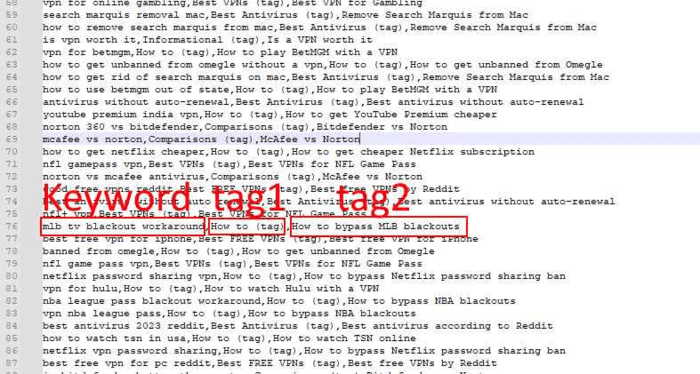
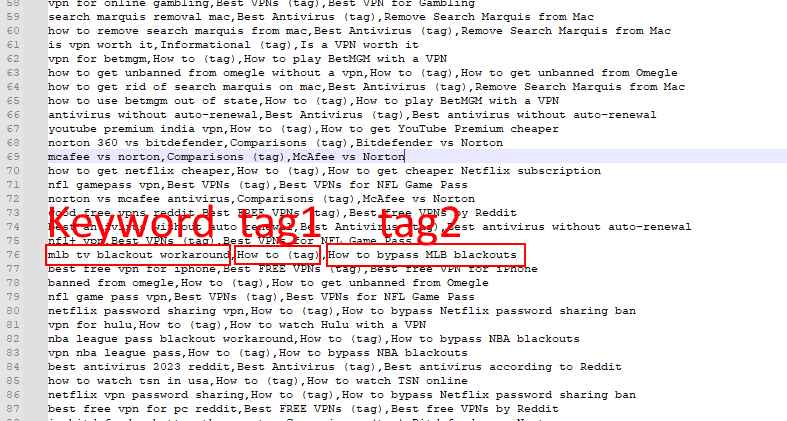
So, to import keyword tags (or any other type of data) to Rank Tracker, launch the tool and open the project you need (or create one).
1) Go to File > Import > Keywords, and select the .csv file you’re going to fetch your keyword data from.
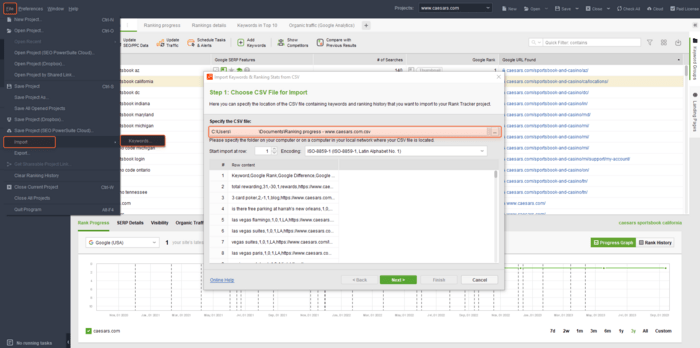
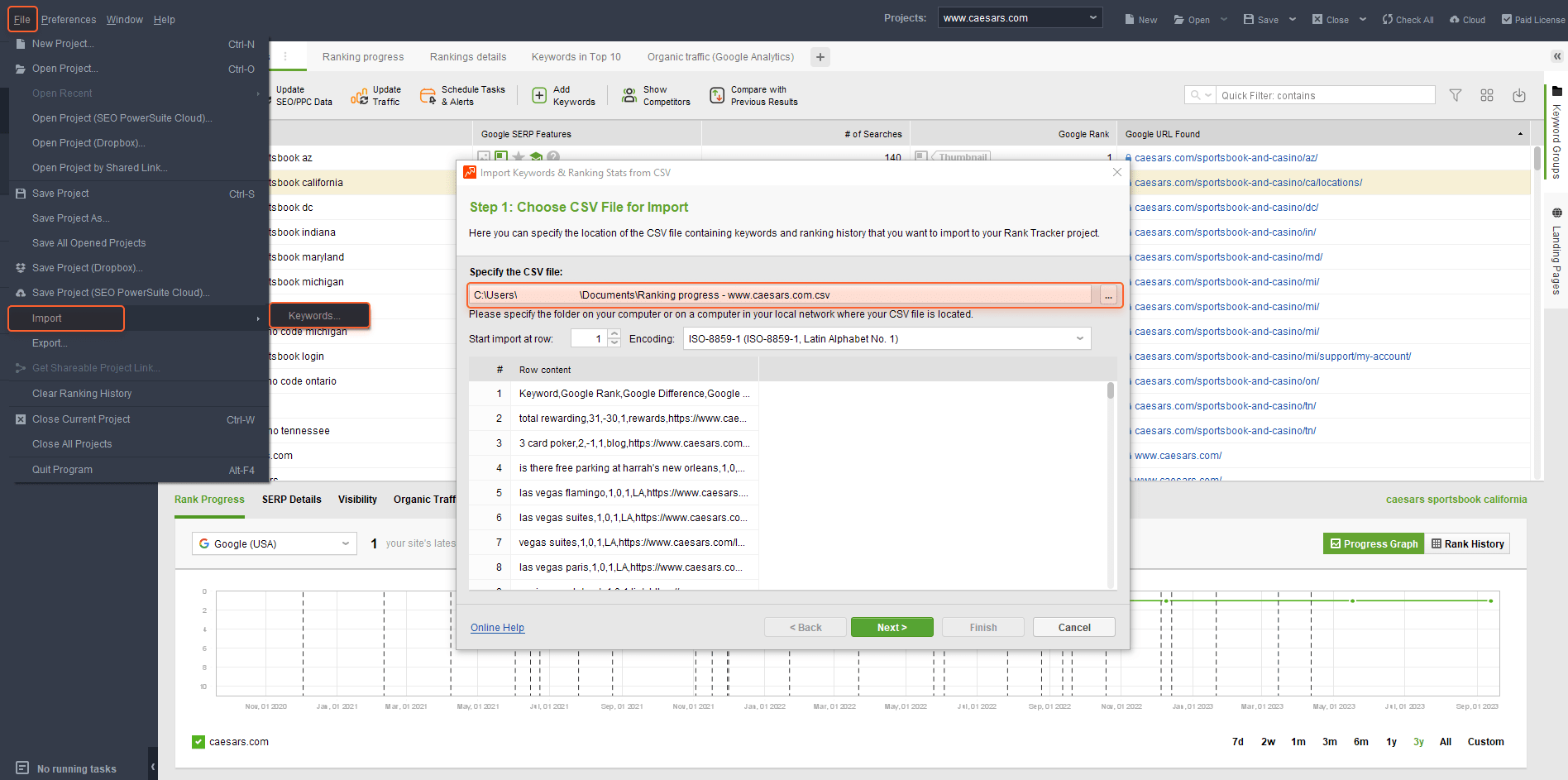
Click Next.
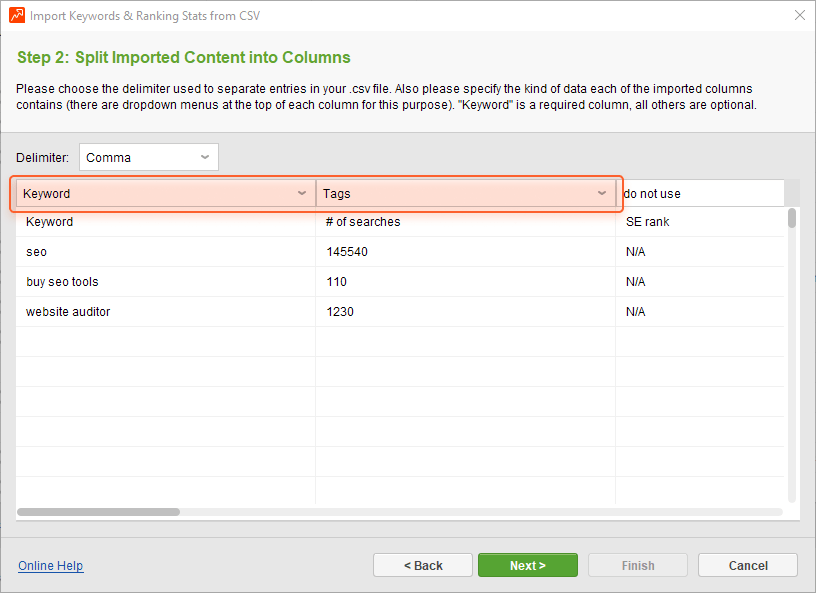
2) Specify the data you want to add to your project, as well as exclude the data you do not need (leave the do not use option).
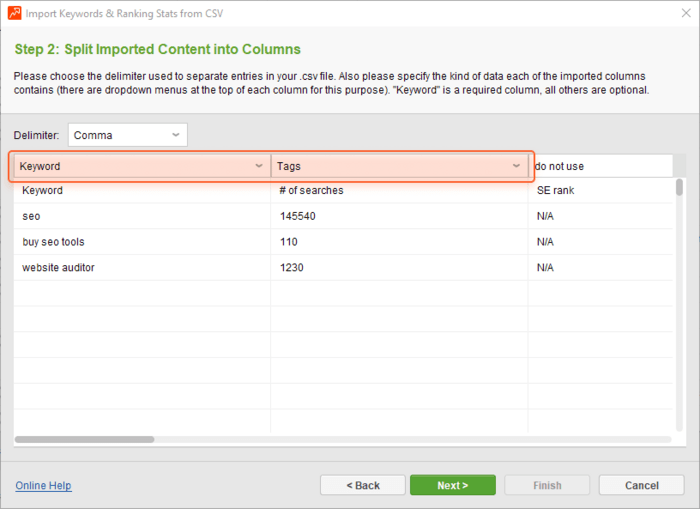
3) Click Next. In Step 3, Rank Tracker will ask you to specify the date when the rankings you import were checked. Sure thing, this step only matters if you import ranking data or other time-sensitive numbers. In case of importing tags or groups, do not bother here much.
4) Click Next. Now you can review the data you’re going to import and exclude some lines if you want to.
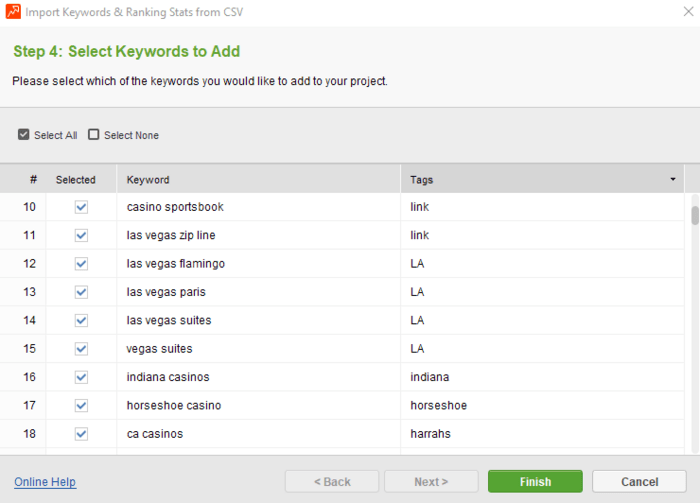
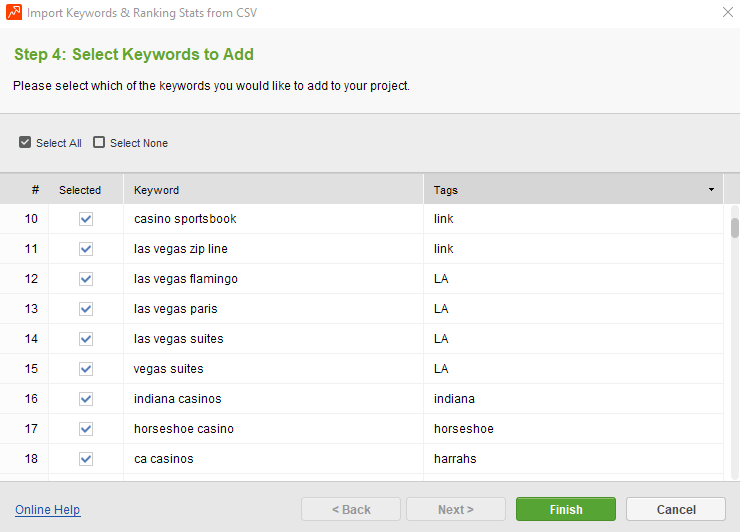
Click Finish.
Enjoy your perfectly imported keyword data in one place.
Rank Tracker automatically marks Google updates on the Visibility and Rank Progress graphs as gray dash lines:
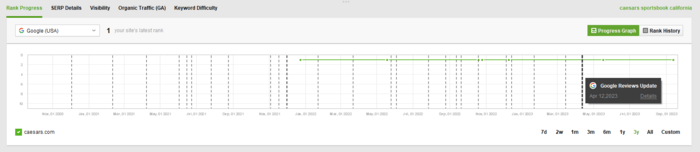
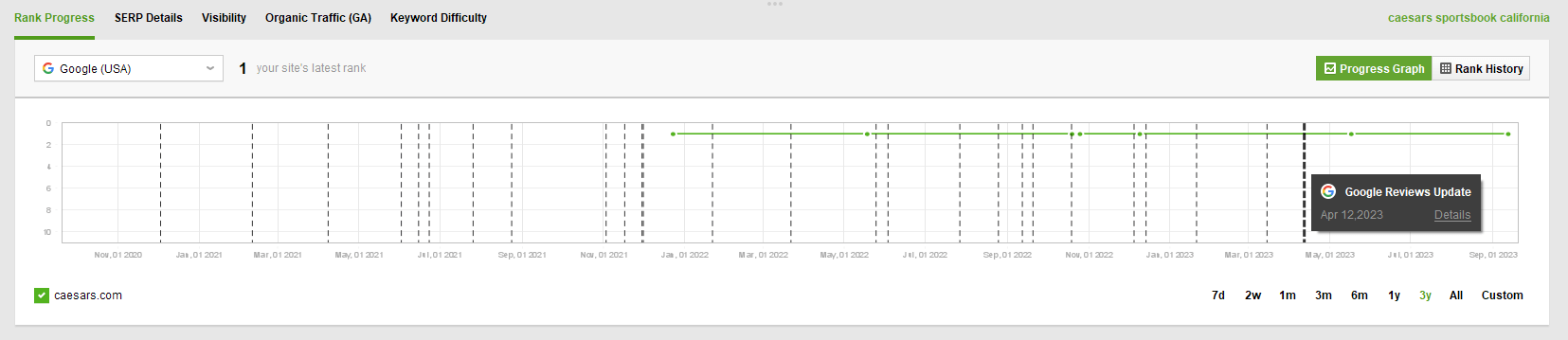
Using these marks, you can find correlations between SERP fluctuations caused by Google updates and sudden changes in your rankings.
Still, Google updates are not the only thing that may cause sudden ranking drops or rises — your positions may change due to the SEO activities you carry out on your site. Content optimization, link-building campaigns, Core Web Vitals improvements — all of that may (and actually should) result in changes of your positions.
To help you see correlations between your SEO effort and rankings, Rank Tracker lets you add custom events to the Rank Progress and Visibility graphs.
To add your own events to the Rank Tracker graphs, right-click the graph in the project you’re working with.
In the modal window, specify the event date, and choose a name for your event. If the event you’re adding is related to all of the projects you have in Rank Tracker, you can specify this, too.
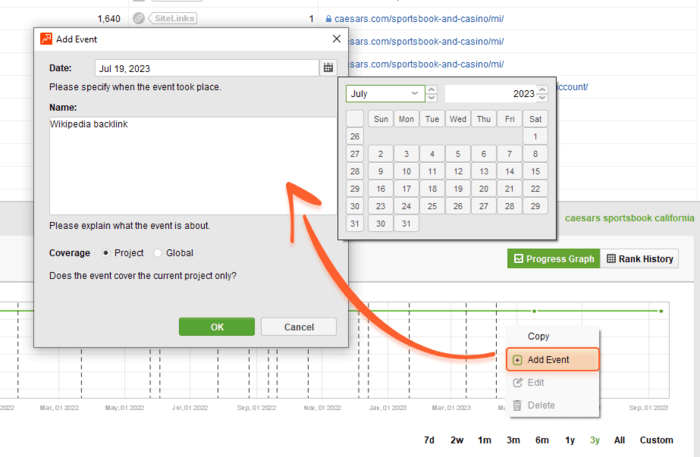
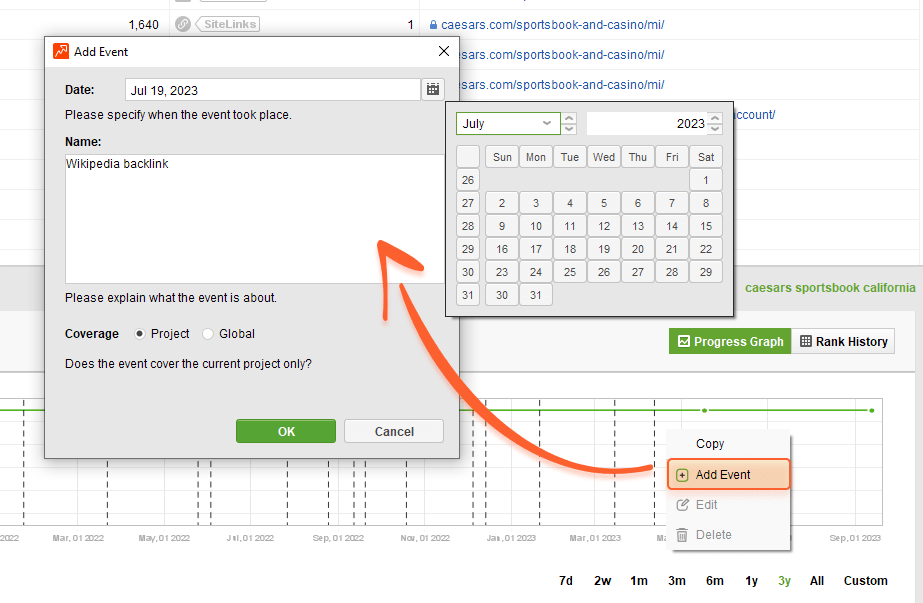
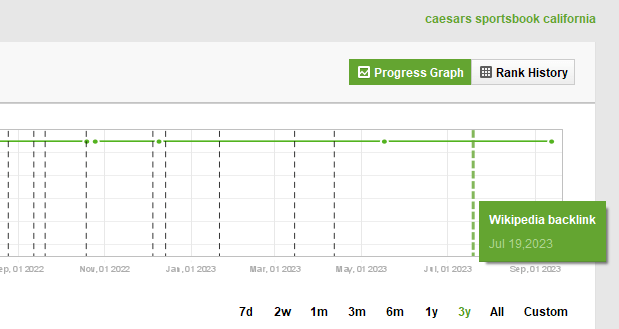
Click OK. On the graph, custom events are marked as green, so you will not mix them up with Google updates.
As you see, SEO PowerSuite tools are capable of much more than A-to-Z SEO audit. The software is full of features that can definitely save you a lot of time and make your SEO workflow smoother and easier.
By the way, did you know about any of these features before? Which hacks became a true discovery? Share your SEO PowerSuite experience in our Facebook community.
 Article stats:
| Linking websites | N/A |
| Backlinks | N/A |
| InLink Rank | N/A |